
Interactive Voice Response Line configuration
An Interactive Voice Response (IVR) Line routes inbound calls to landlines, mobiles, satellite phones, or other Connect Rocket phone lines based on a keypad selection made by the caller. It's well suited to main contact lines where callers need to be directed to the right team or number quickly.
Need help with phone line configuration? Book a training session and we'll be happy to assist.
Step 1
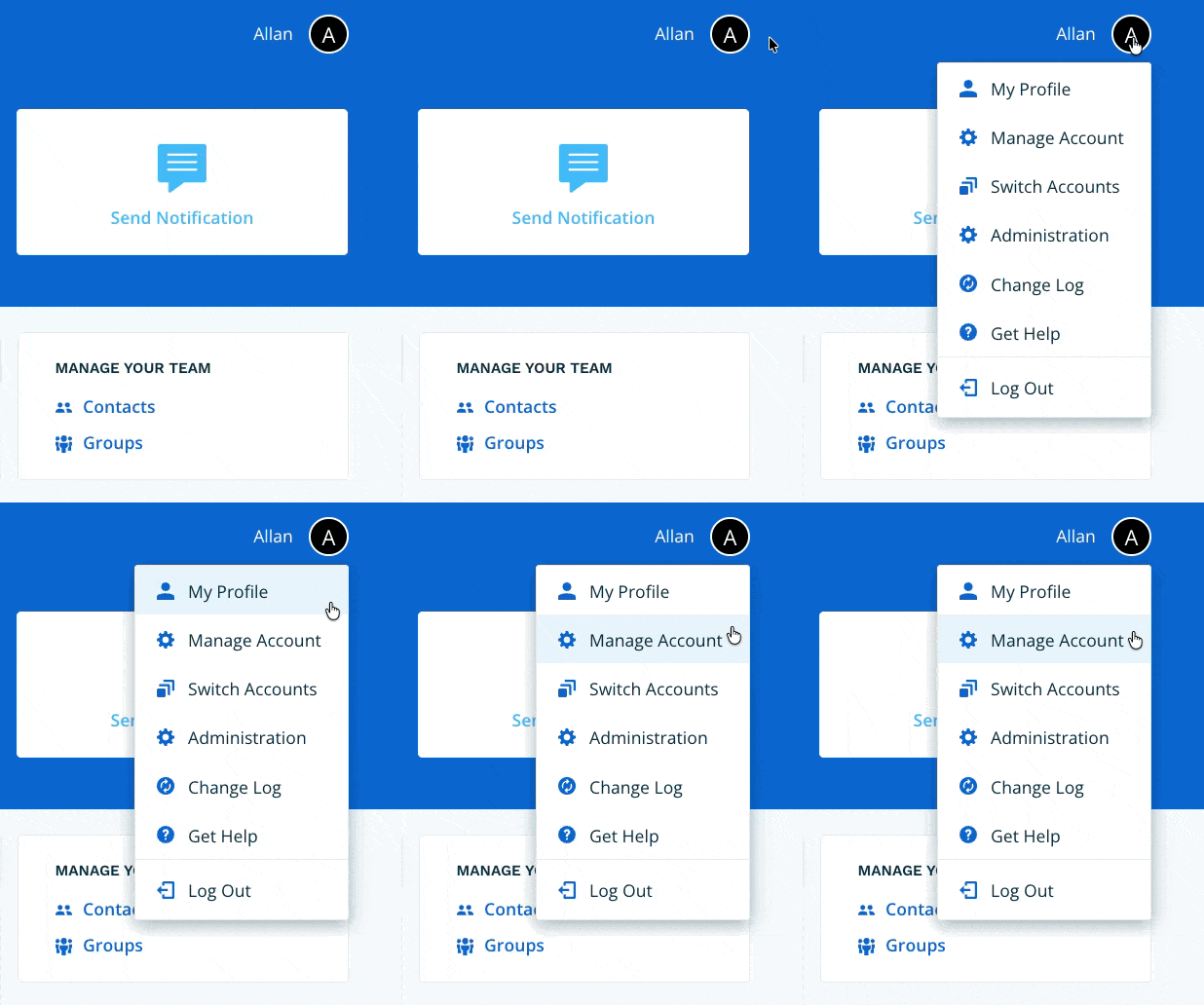
Navigate to Manage Account via the profile menu.
Step 2
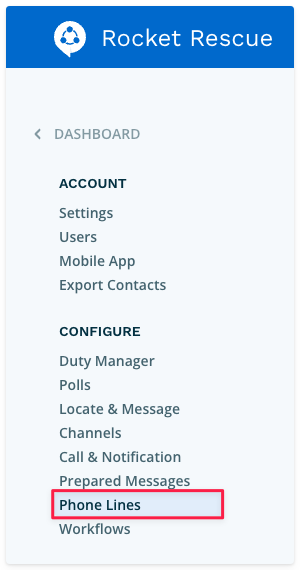
Select Phone Lines from the left-hand navigation.
Step 3
Select the phone number you want to configure. Your account may have one or many phone numbers.

Step 4
Select the line type. Choose Interactive Voice, then select Next.

Step 5
Enter a name for your phone line. Choose a name that will make sense to all users who interact with it. You can optionally add a description. When done, select Next.
If you're editing an existing phone line, update the name and description as needed.

Step 6
All configuration for this article is completed under the Primary Call Flow tab. To learn about Alternate Call Flows and Schedules, see [What are Primary and Alternate Call Flows?].
The greeting is what callers hear when they call your phone number, before the IVR options are presented. Use this greeting to welcome the caller and set the context before they make their selection.
To set a custom greeting, choose one of the following methods:
- Text-to-Voice — type your greeting as text. Connect Rocket will convert it to speech and let you preview it before saving.
- Record a Greeting — provide a direct phone number where you can be reached. Connect Rocket will call you and guide you through recording, previewing, and saving your greeting.
- Upload an Audio File — upload a pre-recorded audio file.

Once your greeting is set, select the play icon to confirm the correct greeting is in place.

Step 7
Select + Add Option to begin configuring the keypad options available to callers.

For each option, complete the following fields in the Spoken IVR Option panel:
- Digit — select the keypad digit (0–9) that the caller will press to choose this option. Each digit can only be assigned once.
- Spoken text — enter the text that describes what selecting this option will do. This text will be read aloud to the caller as part of the IVR menu. For example: "Press 1 to speak with a spill response coordinator."
- Phone number — enter the phone number the call will be forwarded to when this option is selected. Enter the area code and local number (10 digits total).
When done, select Create.
Repeat for each option you want to add to the IVR menu.

Step 8
Once you have added all of your IVR options, your Interactive Voice Response Line is configured. From the Phone Lines page you will see your phone line name and line type. To edit the phone line or options, select the pencil icon.

Test your IVR Line by calling the phone number and confirming each option routes correctly before putting it into operational use.