
Configuring Message Review
If you do not intend to use the Message Review feature, simply leave it disabled.
Step 1
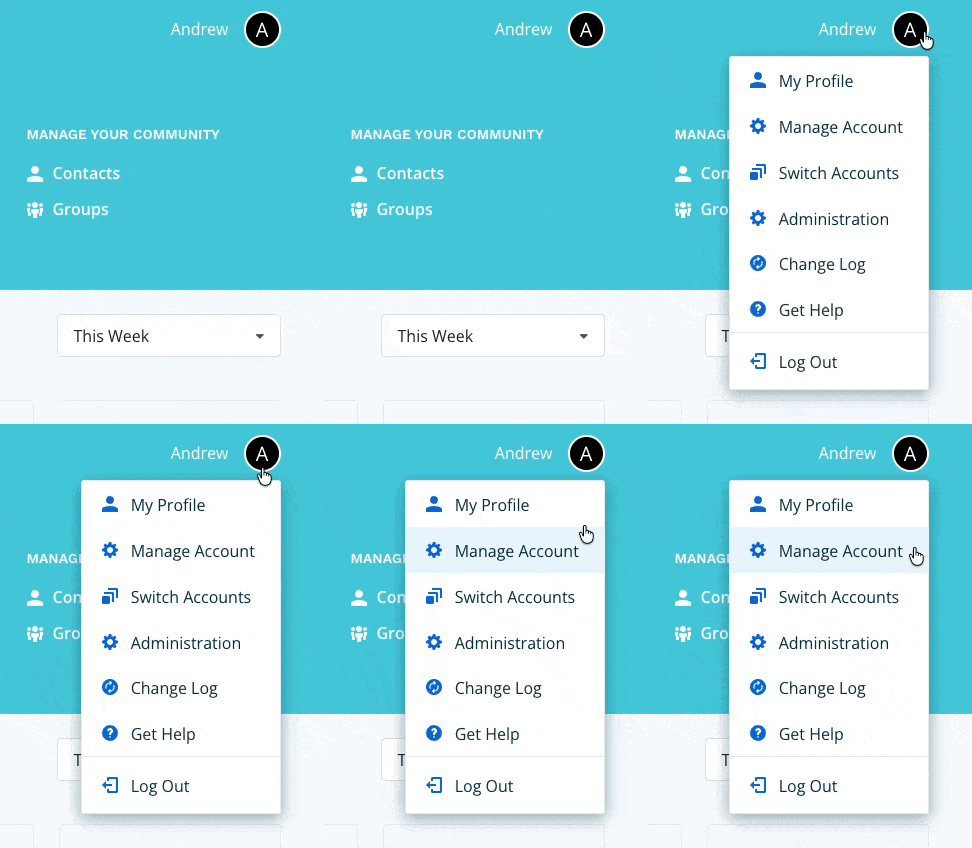
Navigate to Manage Account via the profile menu.
Step 2
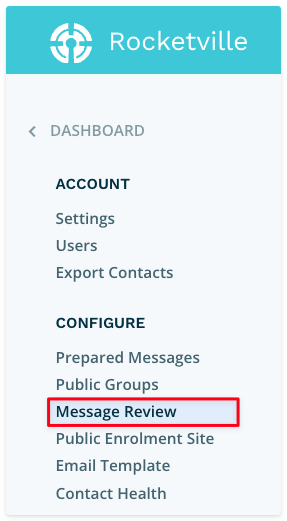
Select Message Review from the left-hand page navigation.
Step 3
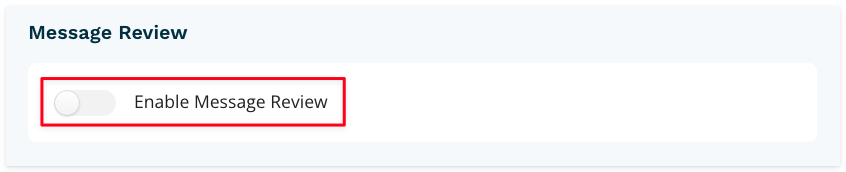
Enable the toggle Enable Message Review.
Step 4
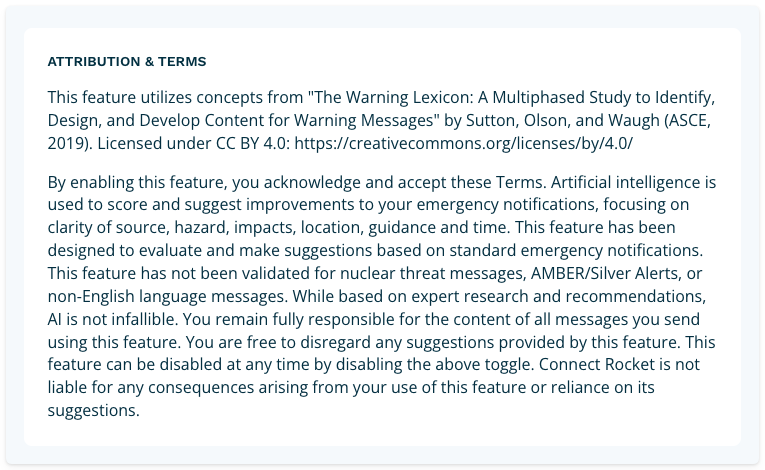
One enabled, Message Review configuration options will be revealed. The first block displays the Attribution & Terms. Please read this. If you do not agree with the Terms, please disable the feature.
Step 5
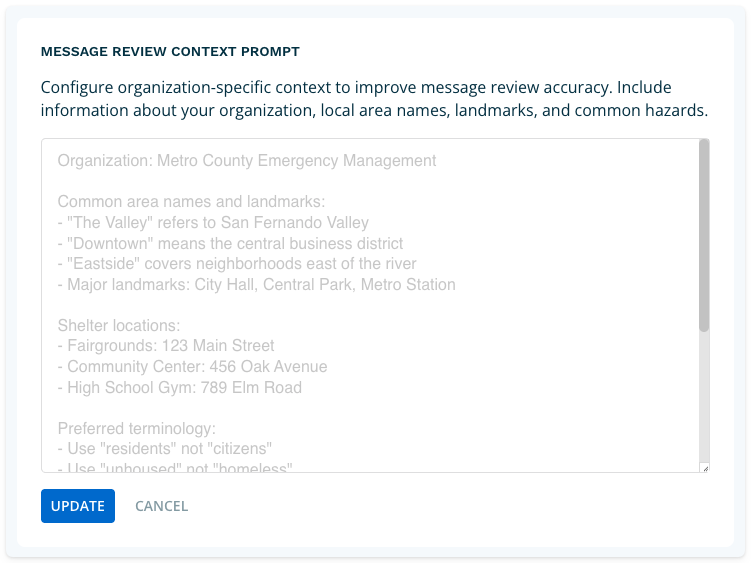
Next, configure your Message Review Context Prompt. Click the pencil/edit to begin adding your information.

Information added here will provide organization-specific context that will improve message review accuracy. Include information about your organization, key contact details, preferred units of measurement etc. When done, click Update.
We recommend testing your context prompt by drafting and reviewing a test notification to ensure you obtain the expected results.
Step 6
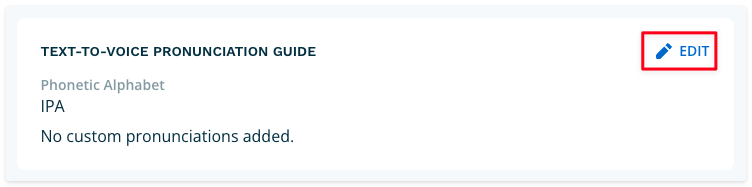
The final step, which is optional, is to configure the pronunciation guide. This guide will be utilized by the text-to-speech engine to guide pronunciation of words that often confuse text-to-speech engines. Click the pencil/edit to begin adding your information.
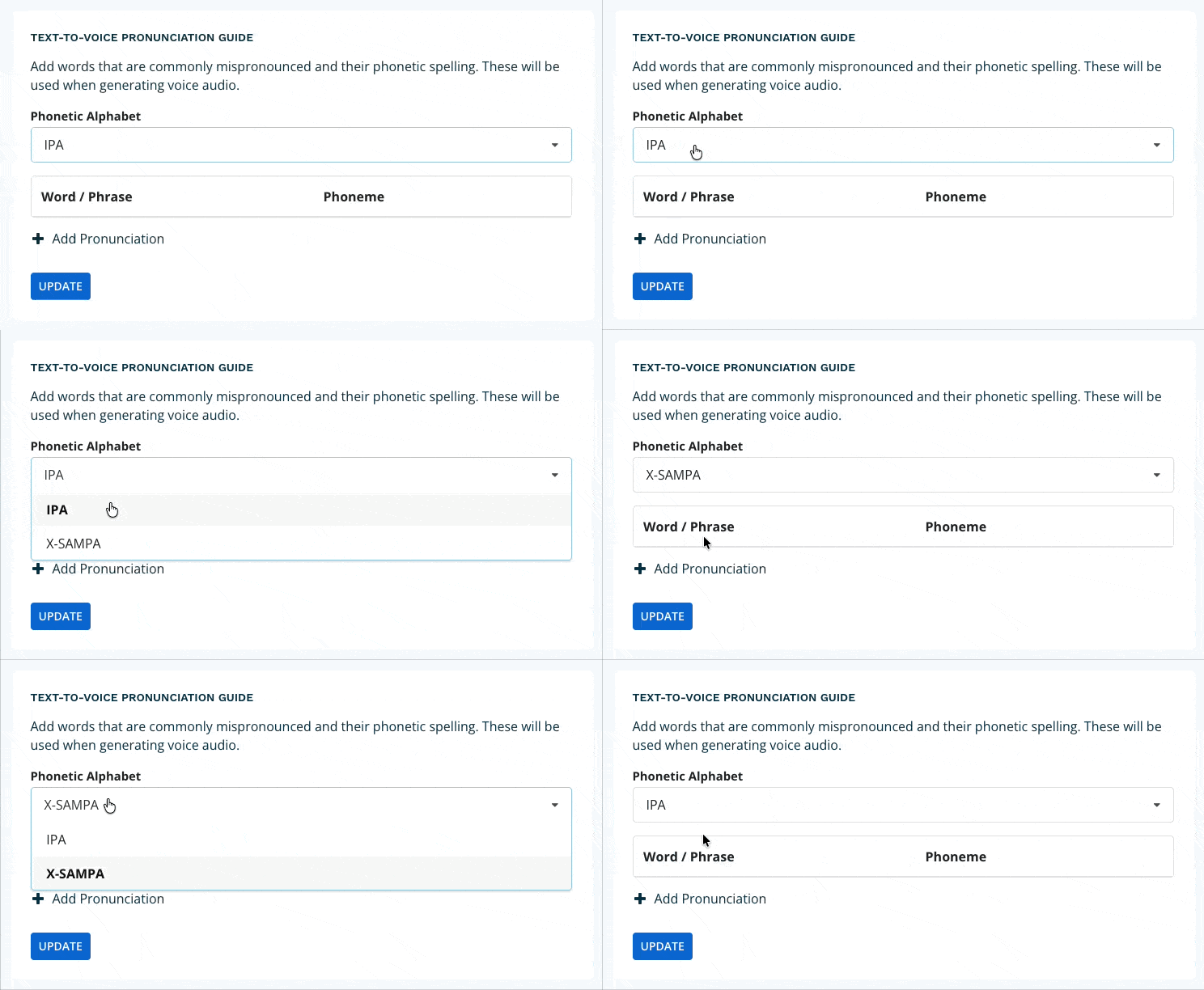
Start by selecting your preferred phonetic alphabet. You can choose from IPA and X-SAMPA.
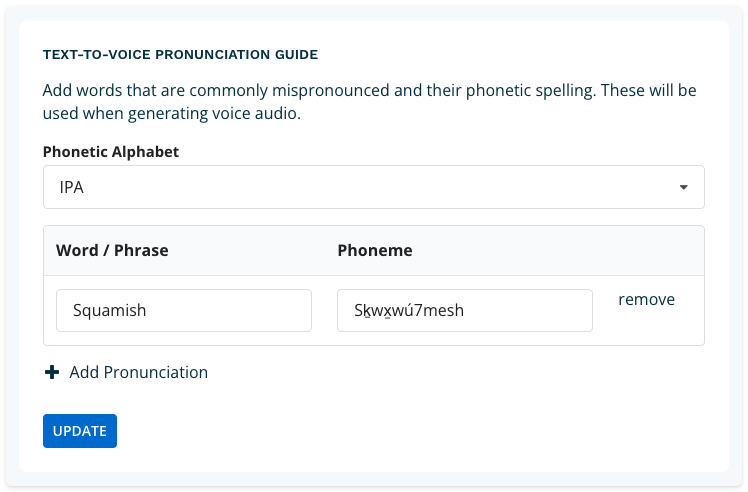
Next add the word or phrase and the associated phoneme that you wish to add a pronunciation guide. When done, you can add another word/phrase or click update.
Your account is now configured to use Message Review. Please exercise the feature and ensure your team has been trained on how to use the feature.