
Configuring workflows
Workflows let you automate a series of communication actions that run the moment a Workflow is activated. This article walks you through creating and configuring a Workflow from the Workflows page — the central place where all Workflows are managed, regardless of how they're activated.
Step 1
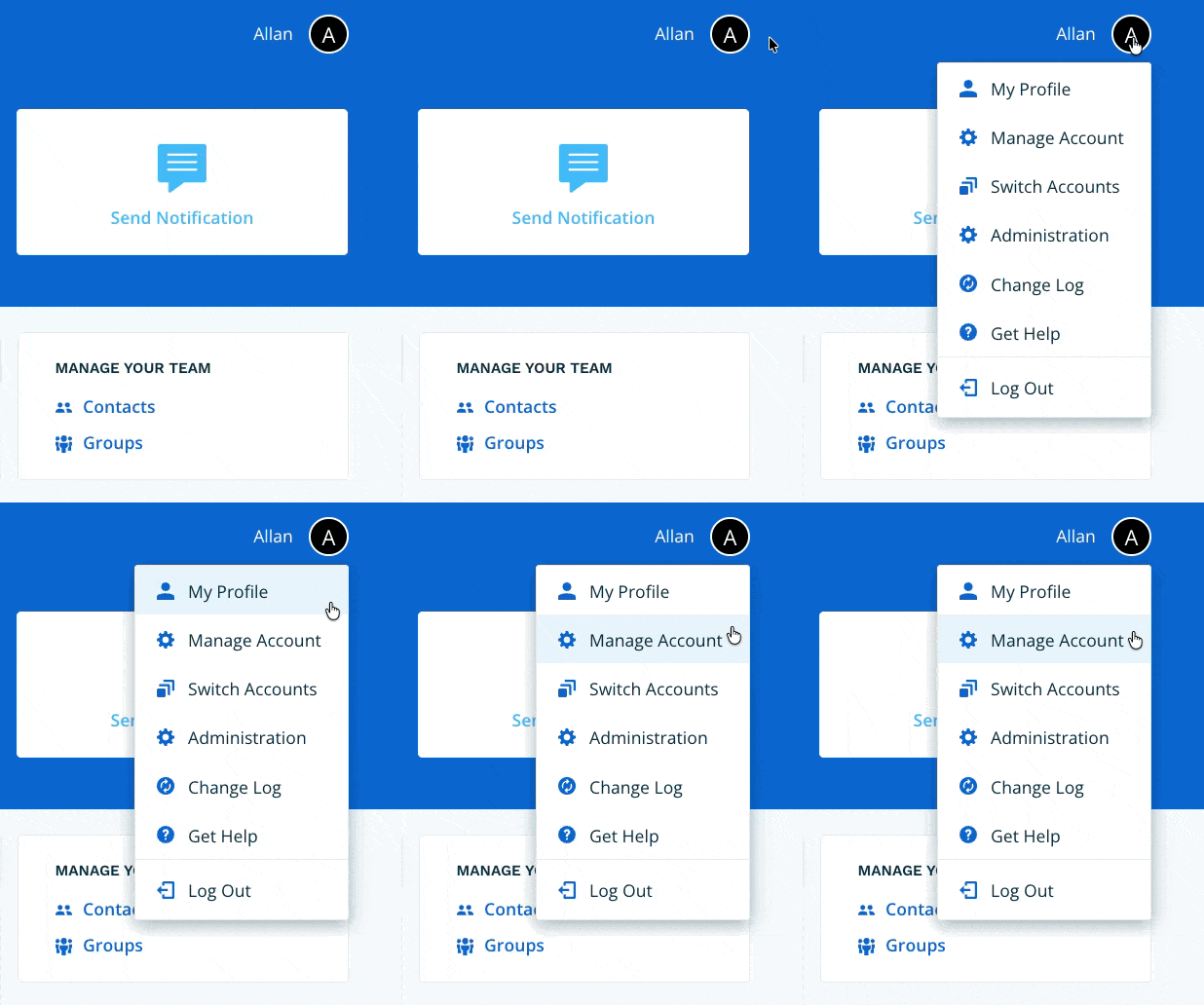
Navigate to Manage Account via the profile menu.
Step 2
Select Workflows from the left-hand navigation.

Step 3
Select + Add a Workflow.

Step 4
Enter a name for your Workflow. Choose a name that clearly describes what the Workflow does — this name will be visible to all users who activate it from the Dashboard. You can optionally add a description for additional context.
When done, select Save.

Your Workflow has been created. You'll now see the full Workflow configuration screen, which has three sections: Alphanumeric Activation, Activate on a Schedule, and Workflow Actions.
Neither Alphanumeric Activation nor a Schedule are required. A Workflow without either can be activated directly from the Dashboard or triggered by a Craig Agent.

Step 5 — Alphanumeric Activation (optional)
Alphanumeric Activation allows your Workflow to be triggered by calling or sending a text message to a Connect Rocket phone number and entering a 4-character code. This requires at least one available phone number in your account.
To set up Alphanumeric Activation, select Setup in the Alphanumeric Activation section, then:
- Phone Line — select the phone line you want to use to receive activations.
- Alphanumeric Code — enter a 4-character code using letters (A–Z) and/or numbers (0–9). For example: RESQ, RTT1, or 1000. Each code must be unique across your account.
- Request inbound caller to leave a voice message (optional) — enable this if you want the caller to record a voice message when activating the Workflow by phone. The recording can be forwarded to your team as part of a Notification action.
When done, select Update.
Note: Workflows with Alphanumeric Activation cannot use placeholders in notification messages. Because activation by telephone keypad or text message offers no way to update placeholder values before sending, notification messages in these Workflows must be fully written in advance.
Alphanumeric Activation links your Workflow to a phone line. For guidance on configuring the phone line itself — including greetings and call flow settings — see Workflow Line Configuration.

Step 6 — Activate on a Schedule (optional)
A scheduled Workflow runs automatically at the time and frequency you define — no manual activation required. To set up a schedule, select Setup in the Activate on a Schedule section.
Weekly
Set the Workflow to run on selected days of the week at a specific time. You can choose to repeat every week, every 2 weeks, or every 4 weeks.

Monthly
Set the Workflow to run on specific dates — for example, the 15th and the last day of each month — or choose a positional day, such as the first Monday or the last Friday of selected months. Set a time for the Workflow to run.

When done, select Update.
Step 7 — Workflow Actions
Actions are what your Workflow does when activated. Select one or more action types from the Workflow Actions section. You can add multiple actions of most types — they will all execute when the Workflow is activated.

Notification
Sends a message to one or more groups when the Workflow is activated.
- Recipients — select the group or groups you want to notify.
- Include Off Duty contacts — tick this checkbox to send the notification to contacts who are currently marked as Off Duty.
- Message — type your notification message. URLs are supported. If your Workflow does not use Alphanumeric Activation, you can use placeholders in your message — values marked with double square brackets can be updated before sending when activating from the Dashboard.
- Add an Attachment (optional) — attach a file to your notification. Any file format is supported. The file will be uploaded and a shortened URL will be appended to your message automatically.
- Add Craig Prompts (optional) — select a configured Craig Prompt to run when the Workflow is activated. The Prompt results will be appended to your notification message.
- Add a Poll (optional) — attach a Poll to your notification. Set the duration for how long the Poll will remain open and collect responses.
- Delivery Method — select one or more delivery methods: Email, Push Message, or Text-To-Voice Call. The options available will depend on how your account is configured.
Push Message will be delivered via the Connect Rocket mobile app where installed. If the recipient does not have the app installed, or if the push message cannot be delivered, a text message will be sent automatically.
Select Save when done.
You can add multiple Notification actions to a single Workflow.

Conference Call
Initiates a conference call to one or more groups when the Workflow is activated.
- Recipients — select the group or groups you want to call.
- Include Off Duty contacts — tick this checkbox to include contacts who are currently marked as Off Duty.
- Retry if unanswered — optionally, if no one answers within 2 minutes, Connect Rocket can retry the call including Off Duty contacts.
- Conference Introduction (optional) — enter text to be spoken to each recipient when they join the call. This gives call recipients immediate context for the nature of the call.
- Conference Phone Number — select the phone number the conference call should be initiated from.
Select Save when done.
You can add one Conference Call per phone line. Accounts with multiple phone lines can add one Conference Call per line.

Pager Notification
Sends a page to one or more groups when the Workflow is activated.
- Recipients — select the group or groups you want to page.
- Include Off Duty contacts — tick this checkbox to include contacts who are currently marked as Off Duty.
- Pager Message — enter your page message. Valid characters are: digits (0–9), #, and *. Use 'w' to insert a half-second pause.
Select Save when done.
You can add multiple Pager Notification actions to a single Workflow.
Note: Legacy pager technology can sometimes be difficult to trigger. Contact support if you're having trouble activating numeric, alphanumeric, or voice pagers.

Webhook
Sends data to an external system when the Workflow is activated.
- Request Method — select POST or GET.
- URL — enter the endpoint URL. Must be HTTPS and publicly resolvable.
- Authorization Header (optional) — add a Bearer token or other authorization header if required by the receiving system.
- Request Body (JSON) — enter your request body using valid JSON. The following string interpolation fields are available:
{{workflow_name}}— the name of this Workflow.{{activation_uuid}}— the unique identifier for this activation.{{recording_url}}— a URL to the voice recording, if available.{{inbound_message}}— the inbound text message, if available.{{craig_prompt_output}}— the output of a Craig Prompt, if one is added below.
- Craig Prompts (optional) — select a configured Craig Prompt. The output will be available as
{{craig_prompt_output}}in your request body.
Select Save when done. You can test your Webhook configuration after saving.
You can add multiple Webhook actions to a single Workflow.

Step 8 — Test your Workflow
Once you have added all of your actions, test your Workflow to confirm it performs as expected. Activate it from the Dashboard and verify that each action executes correctly before putting it into operational use.
Your Workflow is ready
Your Workflow is now available to activate from the Dashboard, to run on its configured schedule, and — if Alphanumeric Activation has been set up — to activate by telephone keypad or text message.
Workflows can also be triggered automatically by a Craig Agent when a defined condition is met. See [Configuring Agents] for more detail.
If your Workflow has been linked to a phone line via Alphanumeric Activation, it will also appear on the Phone Lines page under the associated line.