
Reset your password
If you've forgotten your password or can't sign in to Connect Rocket, you can reset it yourself in a few steps. No administrator action is required.
SAML Single Sign-On users: If your organisation uses SAML Single Sign-On, your password is managed by your organization's identity provider — not Connect Rocket. Contact your IT administrator to reset your password.
Step 1
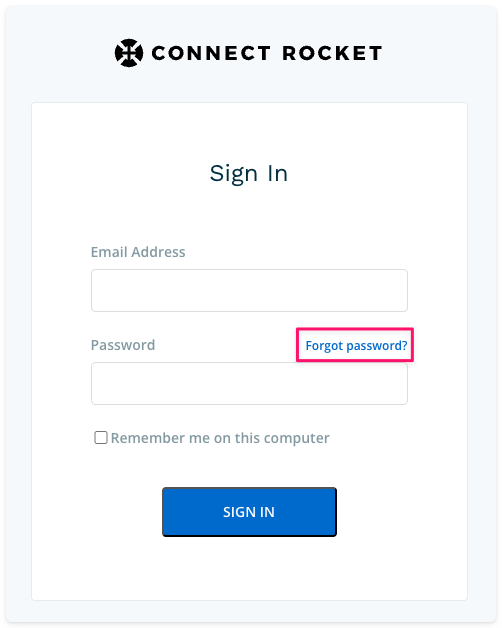
Go to the Connect Rocket sign-in page and select Forgot Password.
Step 2
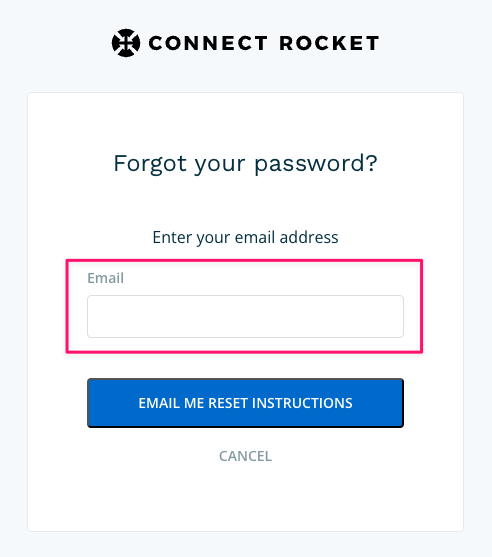
Enter the email address associated with your Connect Rocket account, then select Email Me Reset Instructions.
Step 3
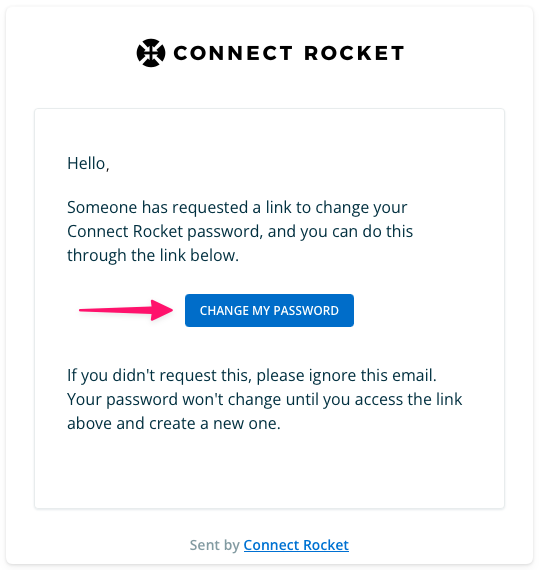
Check your inbox for an email from Connect Rocket. Select the reset link in the email to continue.
If you don't see the email within a few minutes, check your spam or junk folder.
Step 4
Enter a new password and confirm it, then select Change My Password.
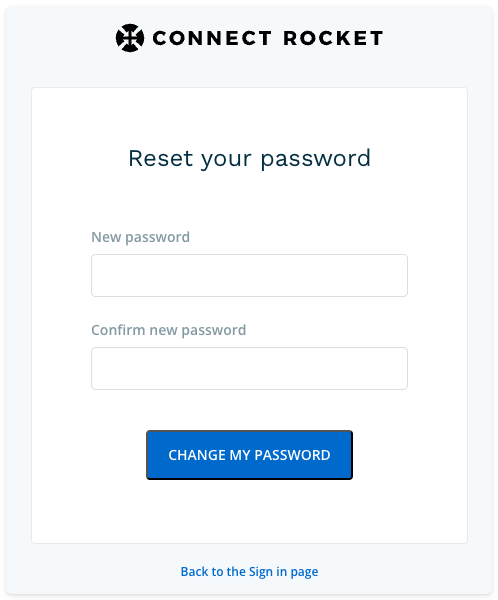
Your password has been reset. You can now sign in with your new password.
Notes
- The password reset link sent by email will expire after a set period of time. If your link has expired, return to the sign-in page and request a new one.
For help signing in, see Sign in to the web application.