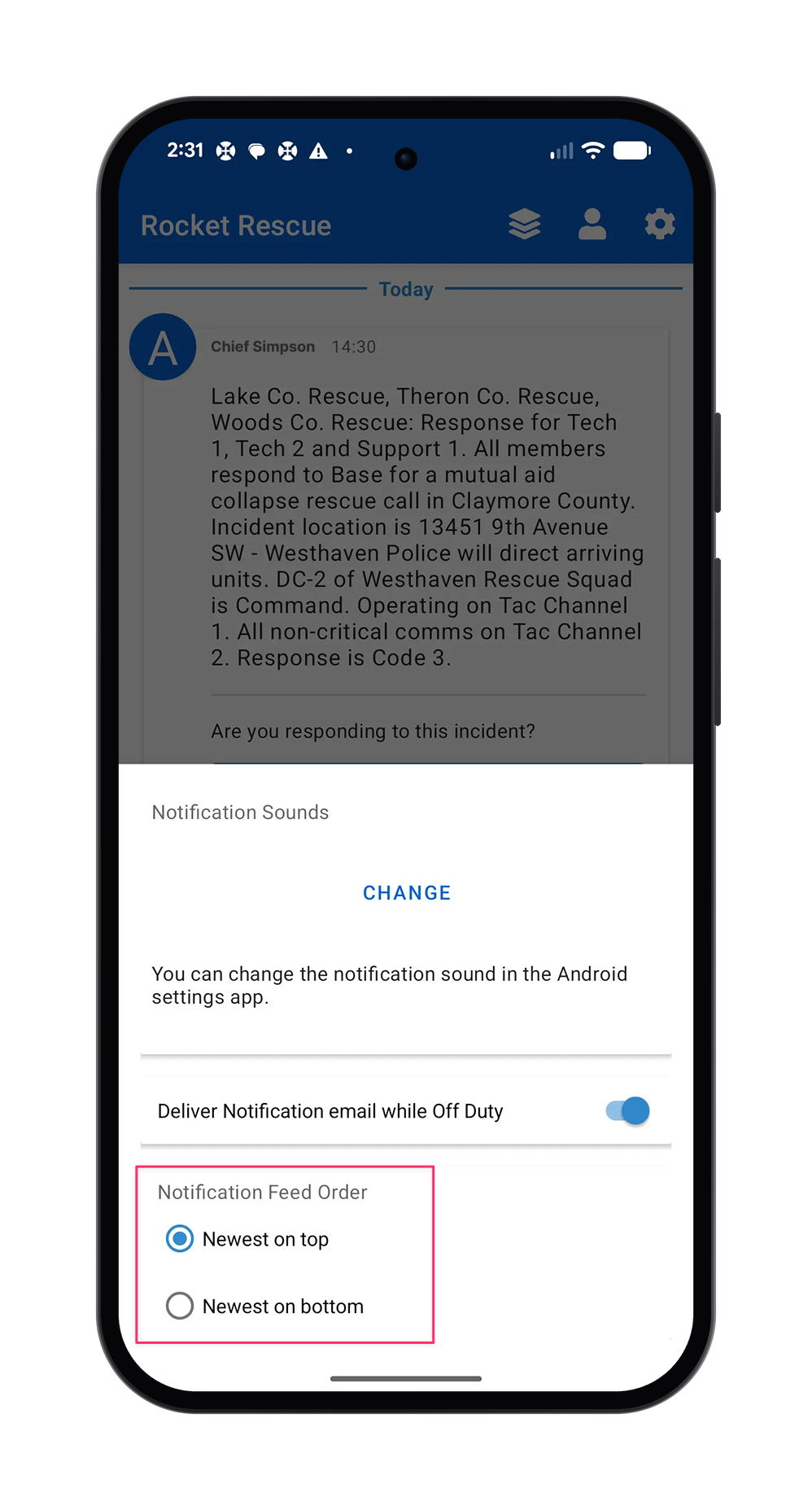
Change notification feed order
Choose whether new notifications appear at the top or the bottom of your Notifications feed in the Connect Rocket app. New notifications appear at the top by default. Changing this setting reorders your existing notifications as well as new ones.
View instructions for iOS or Android.
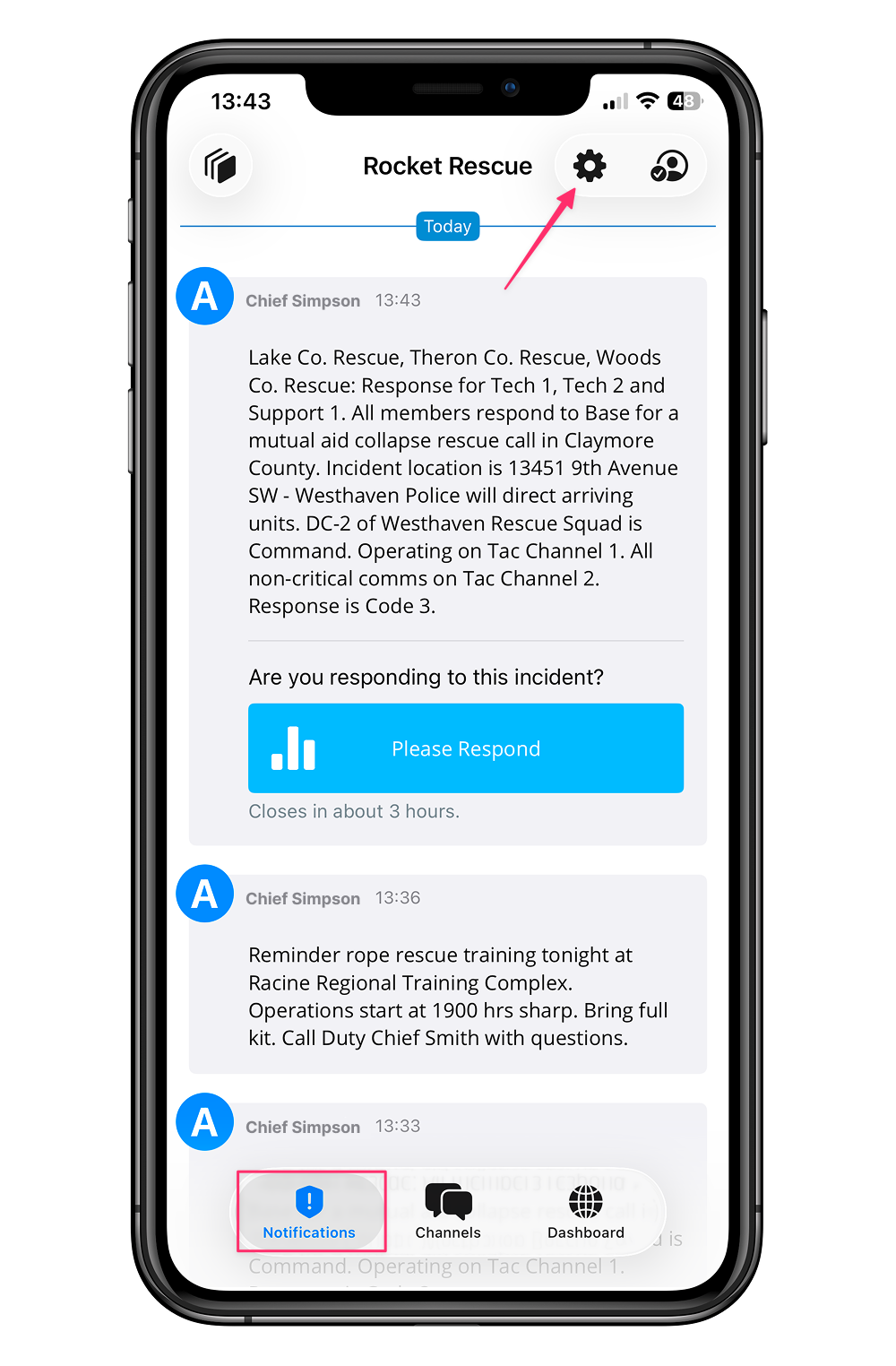
Step 1 - iOS
Open the Connect Rocket app and go to the Notifications page. Then select the gear icon in the top right of the screen.
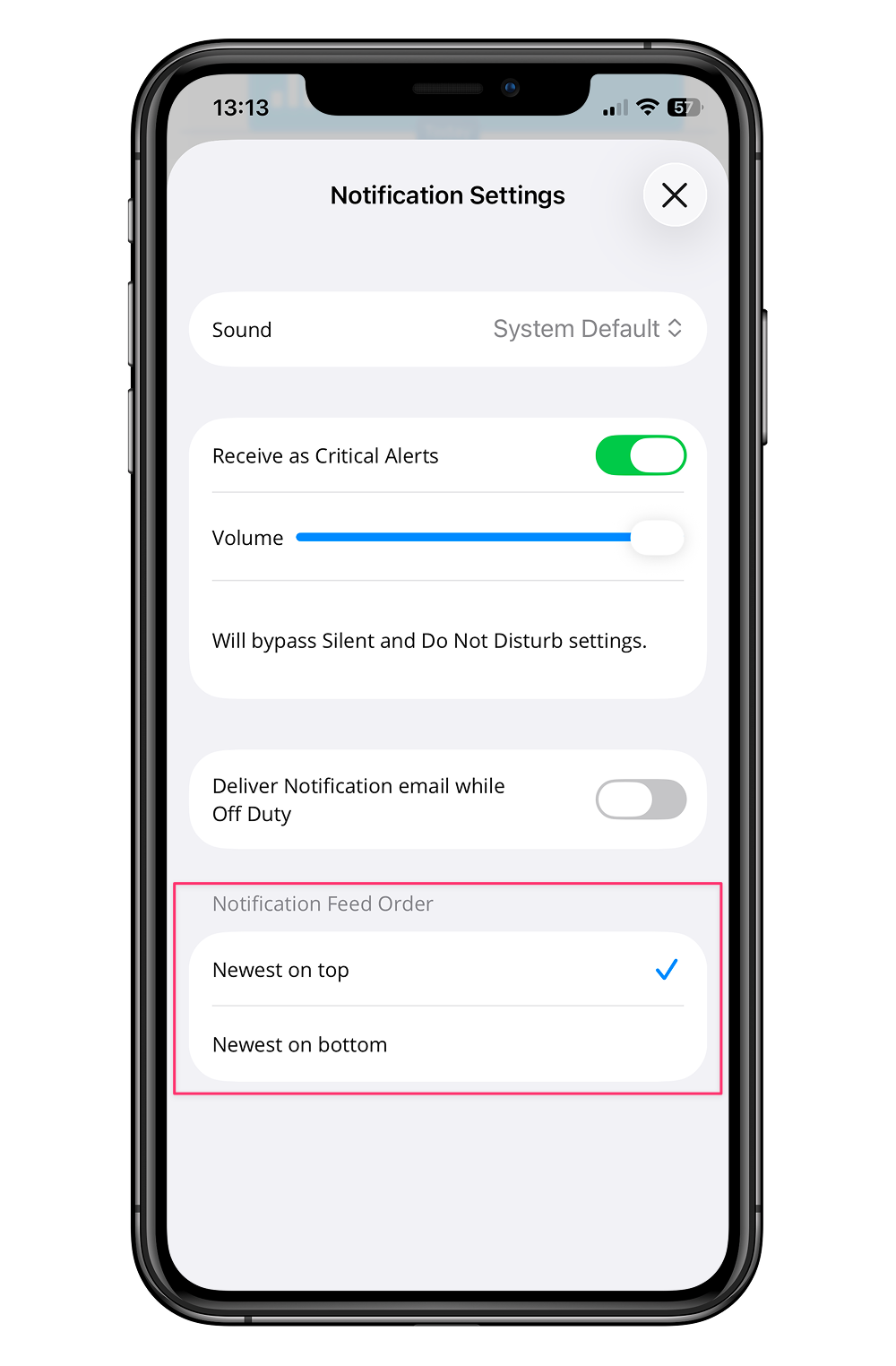
Step 2 - iOS
Under Notification Feed Order, select Newest on top or Newest on bottom. Your choice saves automatically. Select the X in the top right to close Notification Settings and return to your feed.
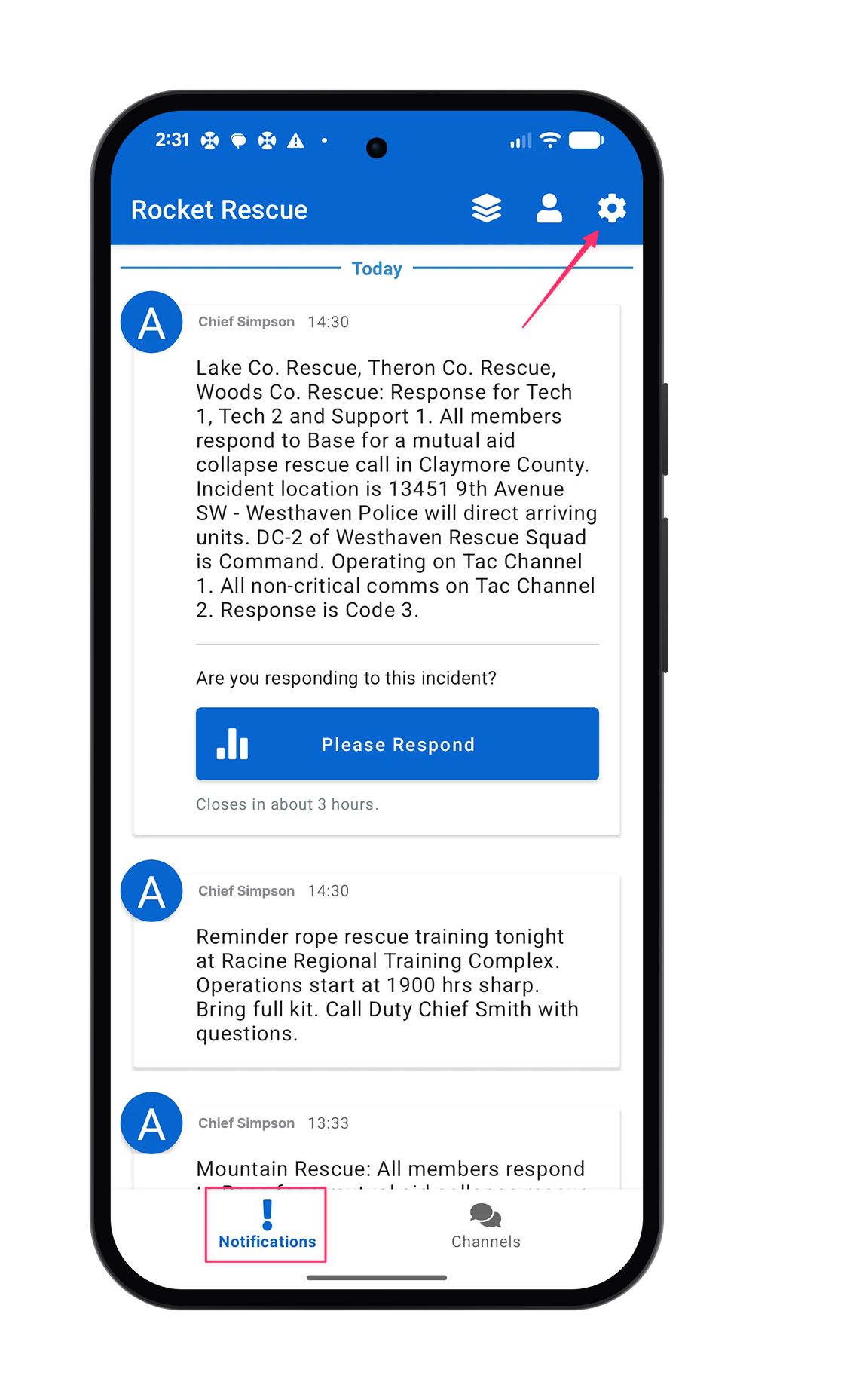
Step 1 - Android
Open the Connect Rocket app and go to the Notifications page. Then select the gear icon in the top right of the screen.
Step 2 - Android
Under Notification Feed Order, select Newest on top or Newest on bottom. Your choice saves automatically. Select the X in the top right to close Notification Settings and return to your feed.