
What does a recipient see when they receive a poll with required responses?
What a recipient sees will depend on how a poll is received. Polls can be received and replied to in the Teams mobile app, text message, via both analog/VoIP calls and email.
Mobile App
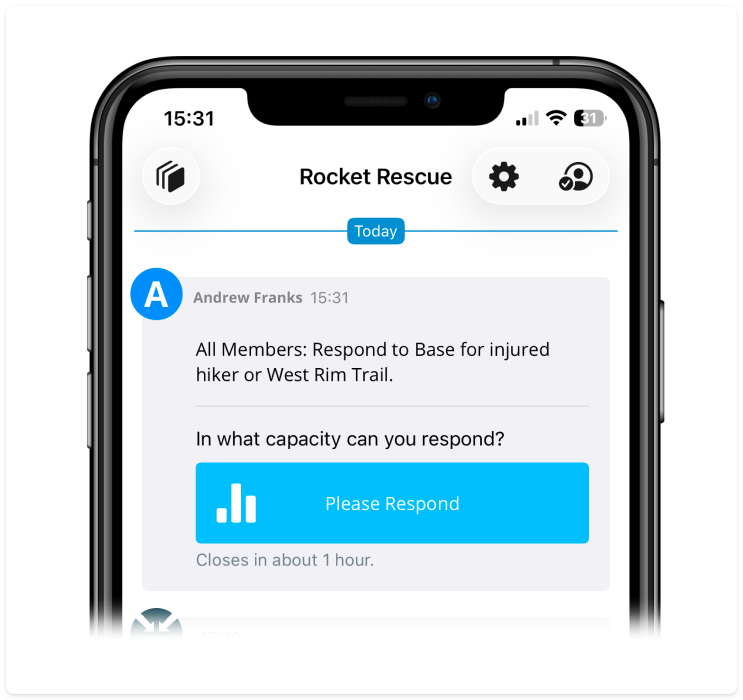
When a notification is sent with an attached poll, your recipient will see the notification and the poll question and an invitation to respond on the poll.
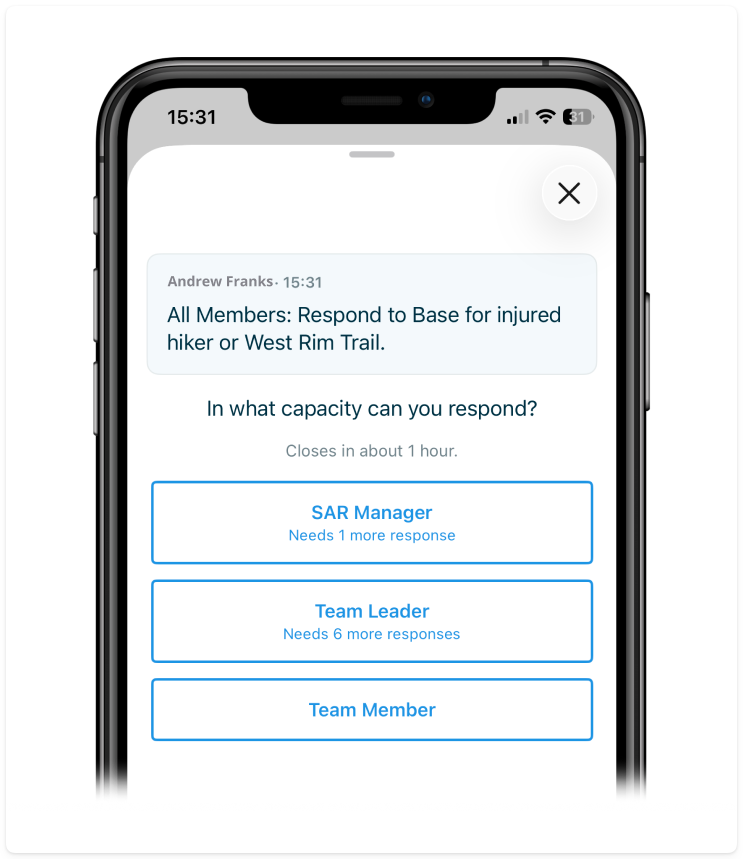
Upon tapping the included poll button, the recipient will see the poll question and the available answers. The recipient will also see the number of responses required for a given answer. If an answer does not show the number of required responses, the answer is open and accepts any number of responses. From this screen, the recipient can tap the answer(s) of their choosing.
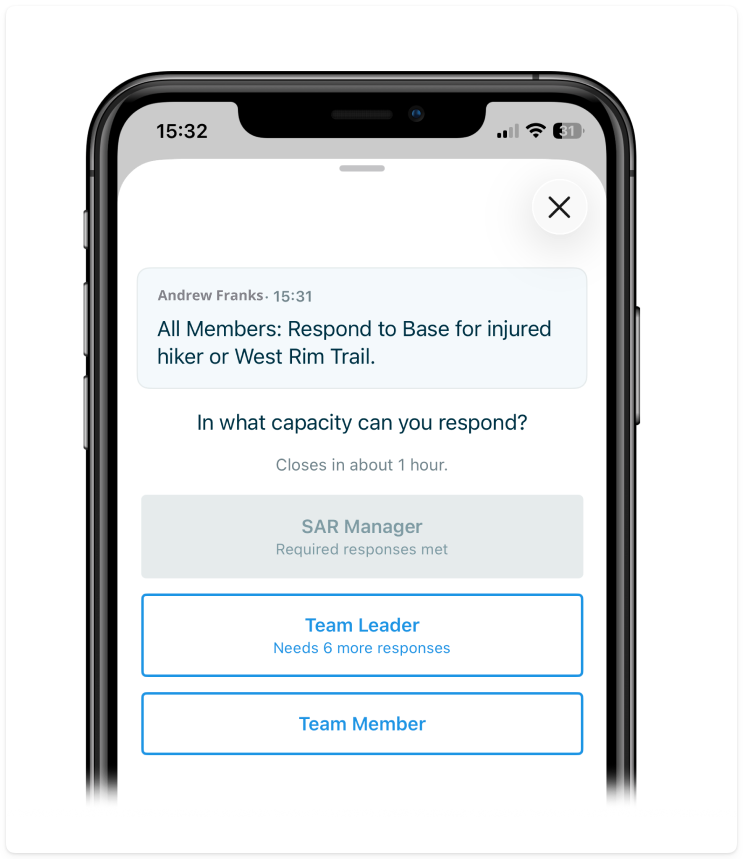
If the required responses for an answer are already filled, that answer will be unavailable (greyed out/disabled) but the recipient can still respond to other answers.
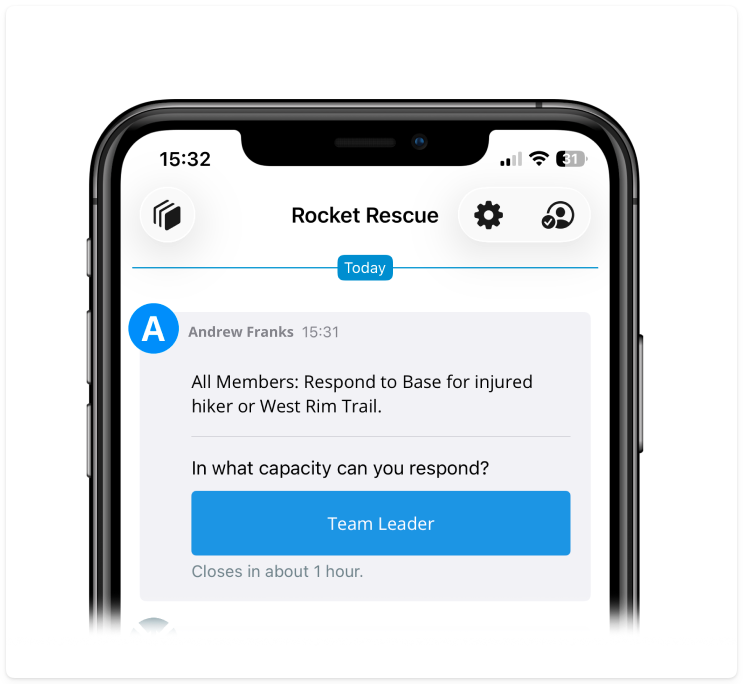
Once the recipient makes a selection, they will be returned to the main notifications page and they will see their selected answer displayed inline. As long as the poll remains in an 'open' state, they can tap an answer to make needed changes.
Text Message
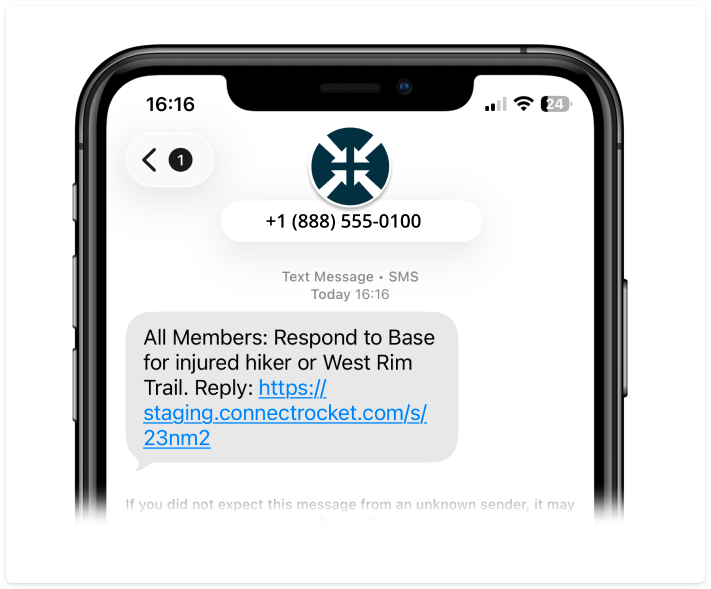
Polls sent by text message will arrive with a link. The recipient can click the link which will load a web page where they can then view the poll.
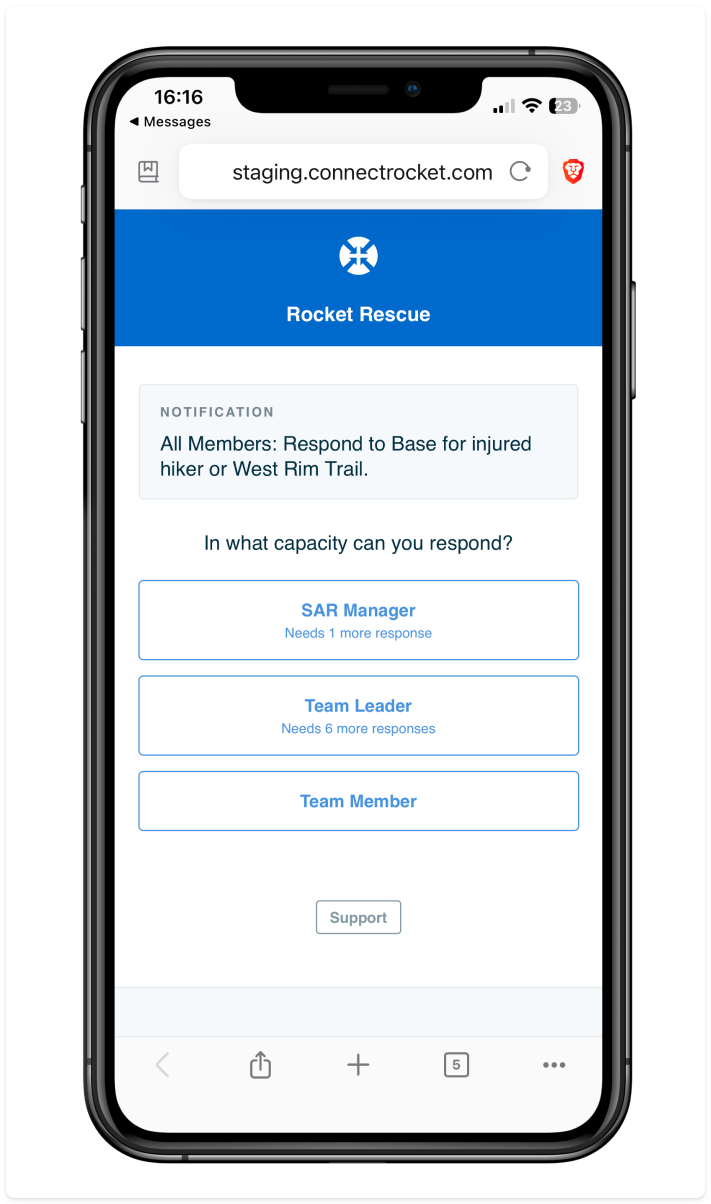
Upon tapping the included poll button, the recipient will see the poll question and the available answers. The recipient will also see the number of responses required for a given answer. If an answer does not show the number of required responses, the answer is open and accepts any number of responses. From this screen, the recipient can tap the answer(s) of their choosing.
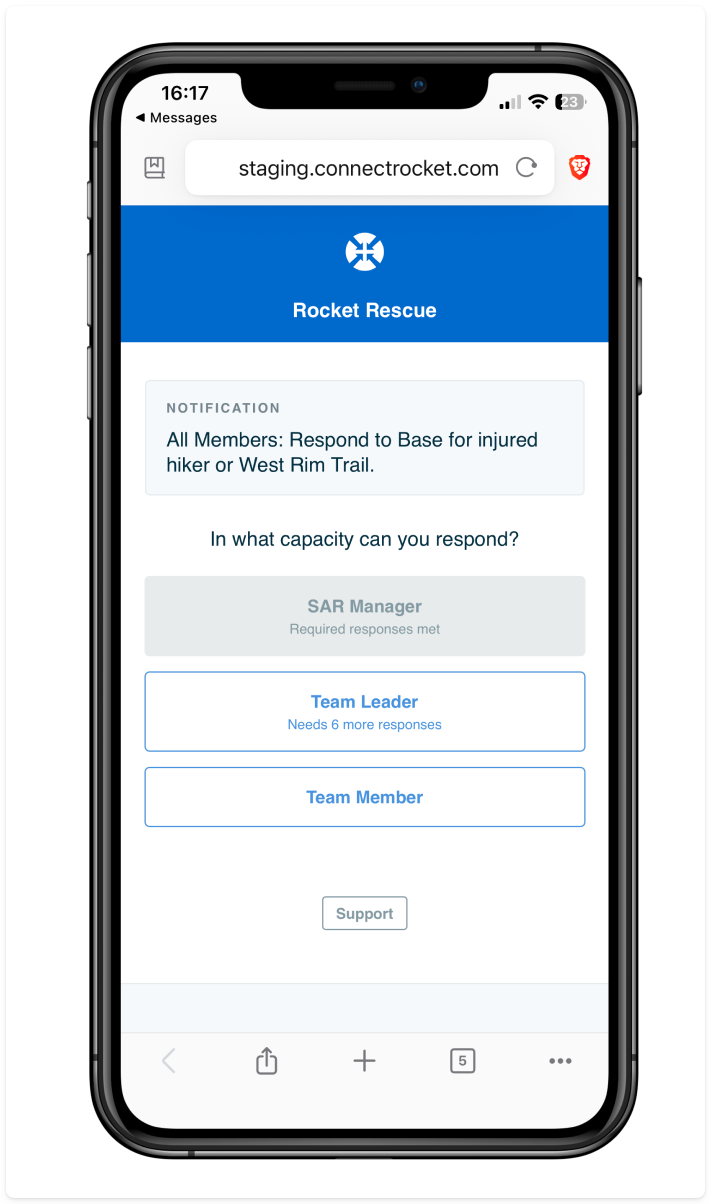
If the required responses for an answer are already filled, that answer will be unavailable (greyed out/disabled) but the recipient can still respond to other answers.
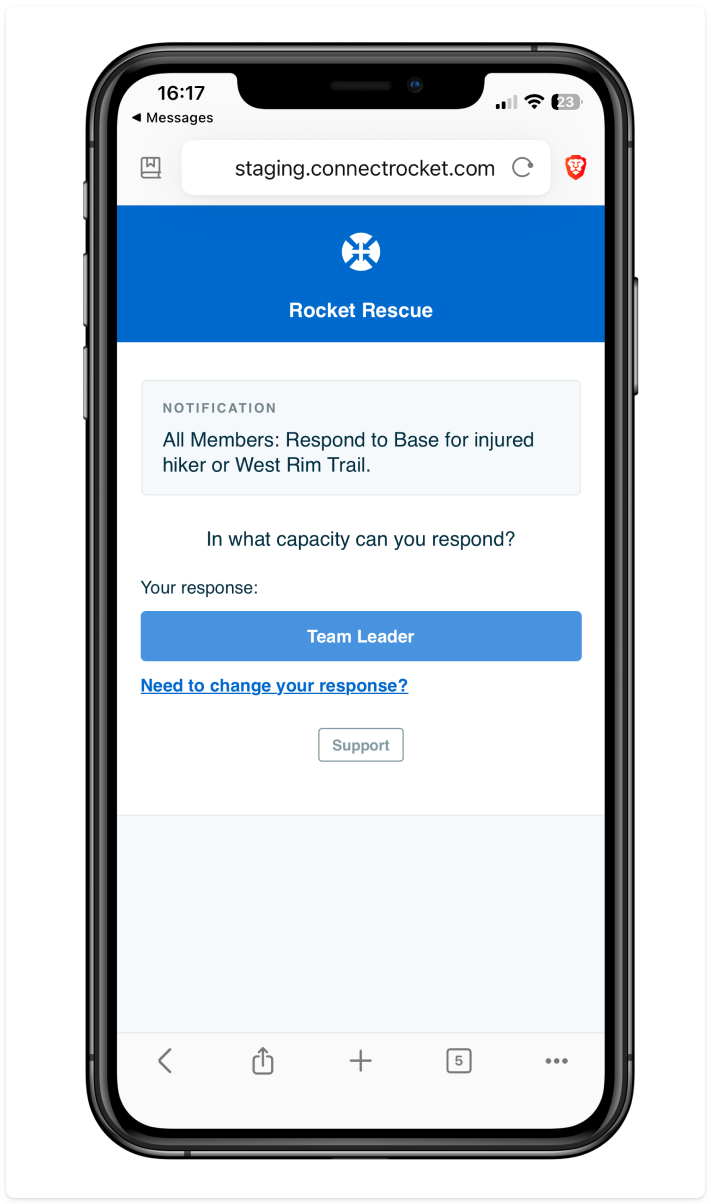
Once the recipient makes a selection, they will be returned to the main notifications page and they will see their selected answer displayed inline. As long as the poll remains in an 'open' state, they can tap an answer to make needed changes.
Phone Call - Analog and In-App
When a poll is received by a Text-to-Voice analog phone call, Connect Rocket will, as part of the call, read the poll question and answer options to the call recipient. Each answer will be associated with a number on the telephone keypad. To respond to the poll, the call recipient can depress the number on the phone keypad that corresponds with their answer. They will then be able to choose additional answers or they can end the call when they have made their selection(s).
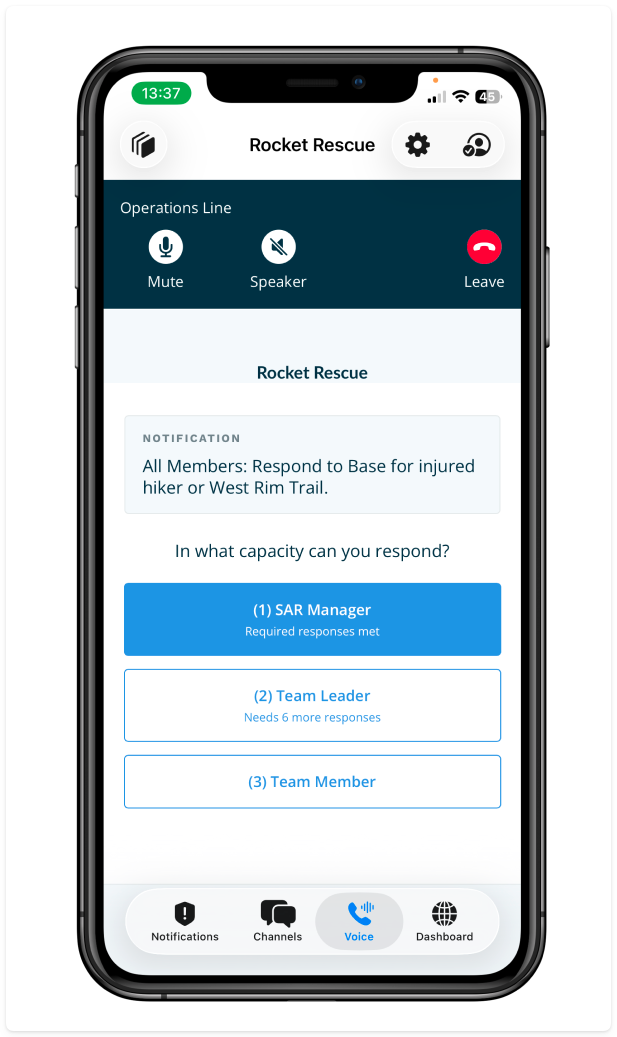
If the inbound call is a Text-to-Voice In-App Call and has a Poll associated with it, the recipient will see the poll question and the available answers. The recipient will also see the number of responses required for a given answer. If an answer does not show the number of required responses, the answer is open and accepts any number of responses. From this screen, the recipient can tap the answer(s) of their choosing.
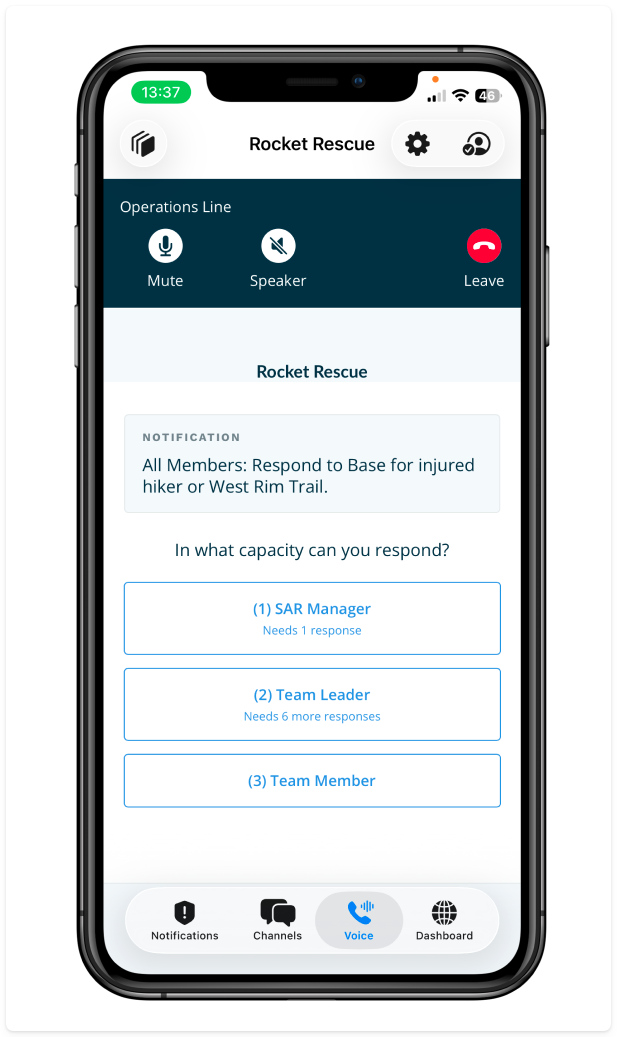
If the required responses for an answer are already filled, that answer will be unavailable (greyed out/disabled) but the recipient can still respond to other answers.
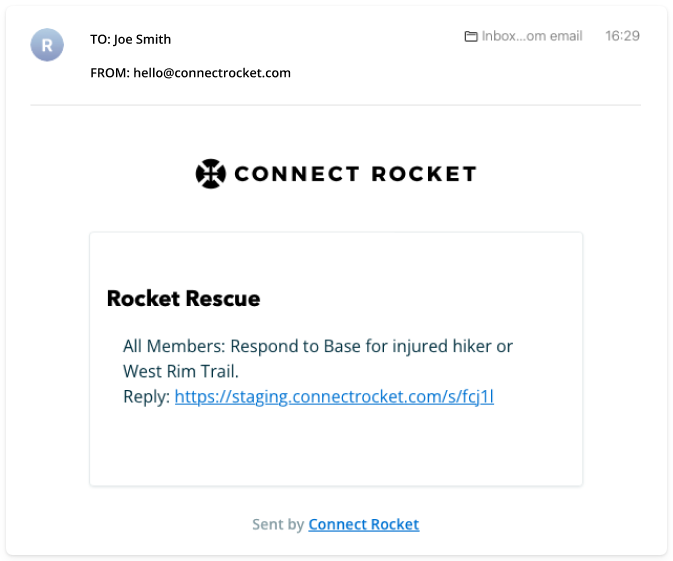
Polls sent by email will arrive with a link. The recipient can click the link which will load a web page where they can then view the poll.
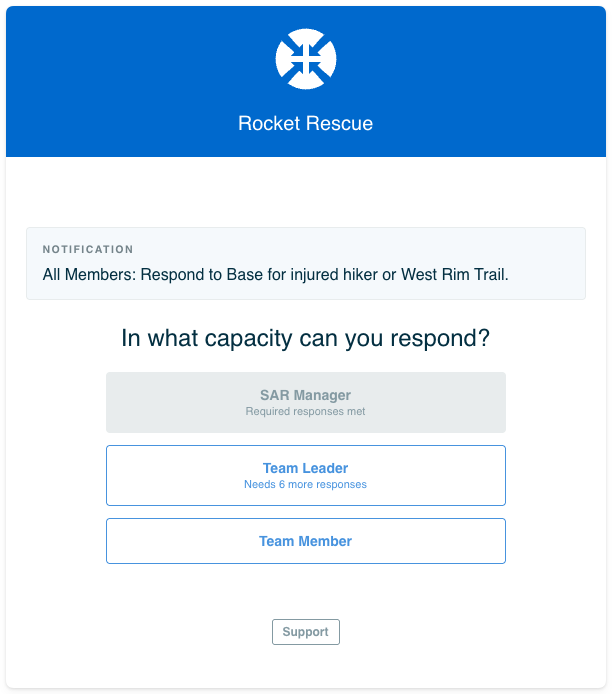
Upon viewing the poll, the recipient will see the poll question and the available answers. The recipient will also see the number of responses required for a given answer. If an answer does not show the number of required responses, the answer is open and accepts any number of responses. From this screen, the recipient can tap the answer(s) of their choosing.
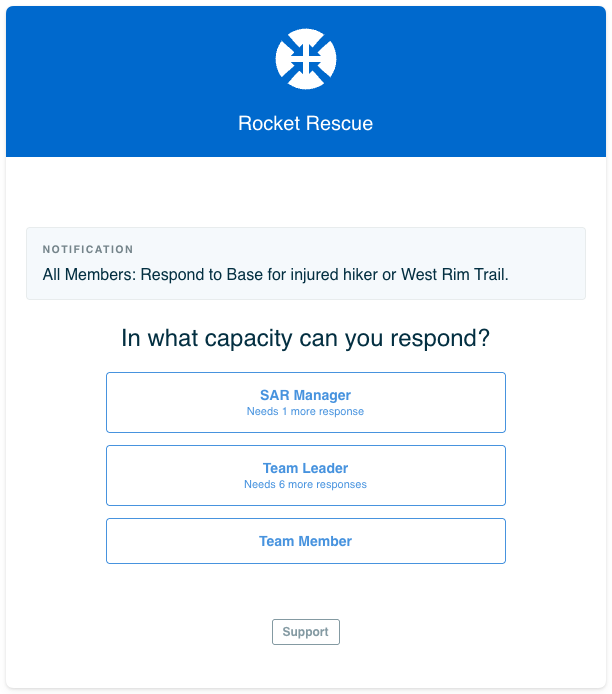
If the required responses for an answer are already filled, that answer will be unavailable (greyed out/disabled) but the recipient can still respond to other answers.
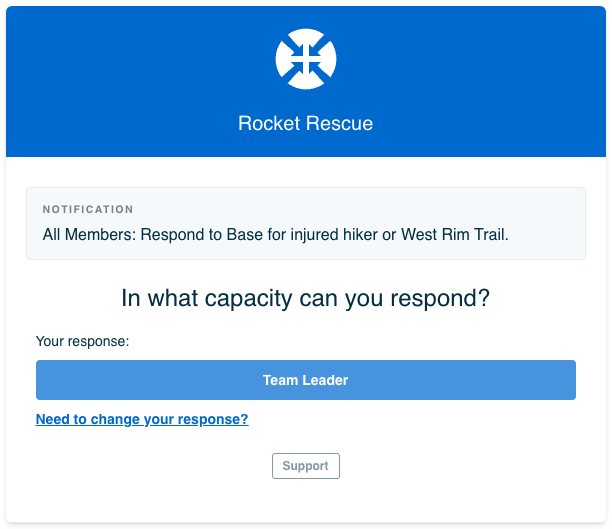
Once the recipient makes a selection, they will be returned to the main notifications page and they will see their selected answer displayed inline. As long as the poll remains in an 'open' state, they can tap an answer to make needed changes.
Closed Poll
When a Poll's duration has expired or when an Administrator has opted to close a Poll early, the recipient will see an indication that the poll is closed and no longer gathering responses.
