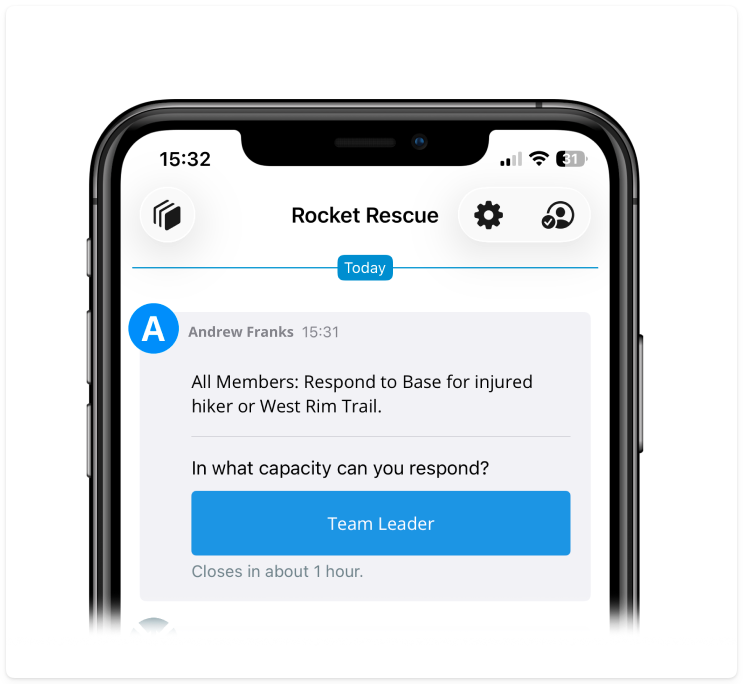
Answer a poll with required responses
Answering a poll via iOS and Android follows the same pattern.
Step 1
When a notification is sent with an attached poll, your recipient will see the notification and the poll question and an invitation to respond on the poll.
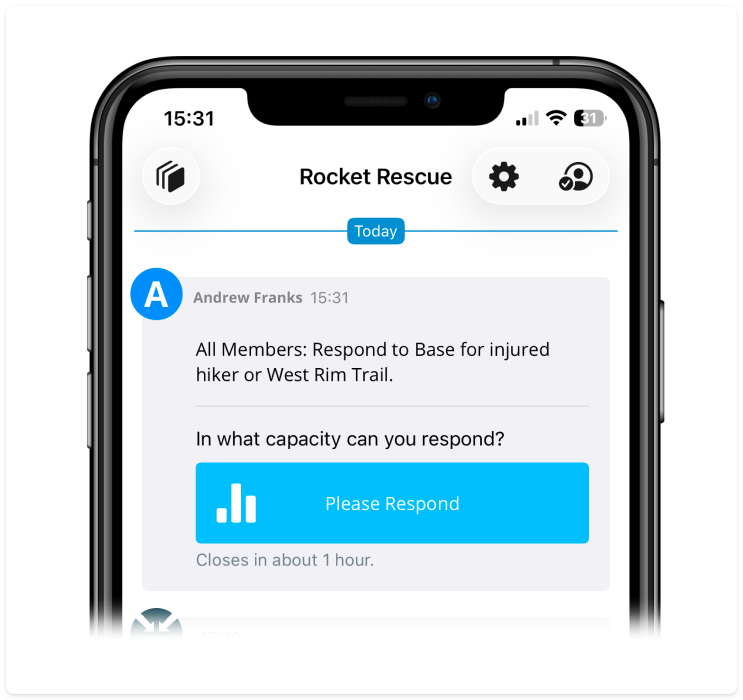
Step 2
Upon tapping the included poll button, the recipient will see the poll question and the available answers. The recipient will also see the number of responses required for a given answer. If an answer does not show the number of required responses, the answer is open and accepts any number of responses. From this screen, the recipient can tap the answer(s) of their choosing.
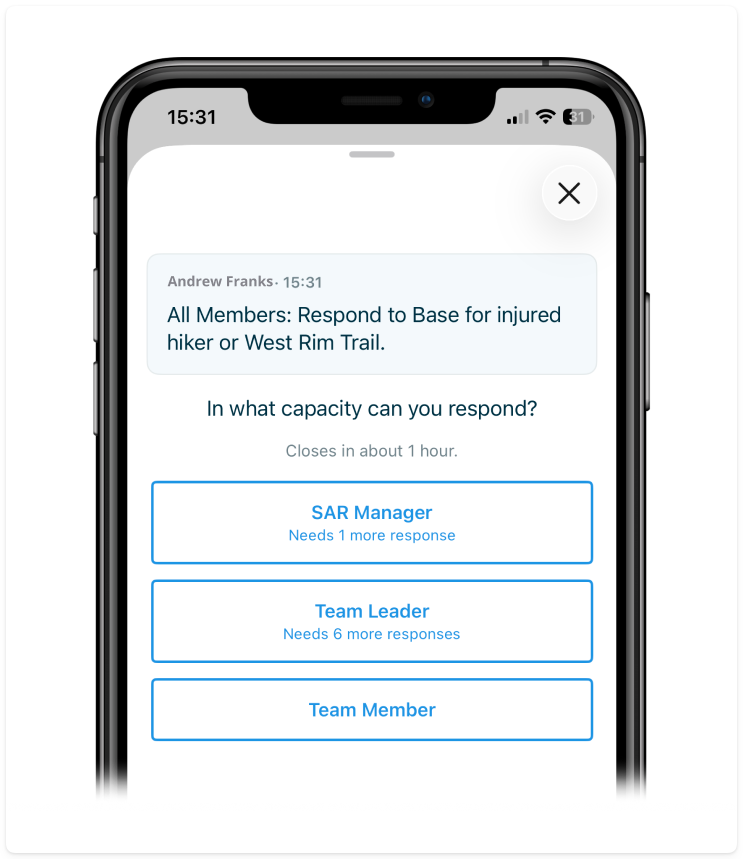
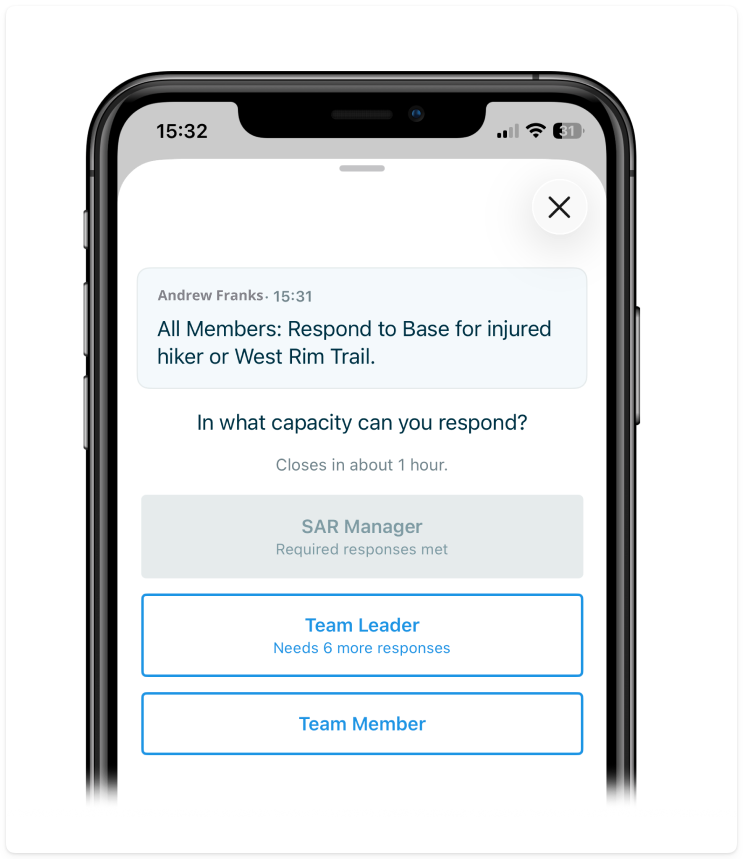
If the required responses for an answer are already filled, that answer will be unavailable (greyed out/disabled) but the recipient can still respond to other answers.
Step 3
Once the recipient makes a selection, they will be returned to the main notifications page and they will see their selected answer displayed inline. As long as the poll remains in an 'open' state, they can tap an answer to make needed changes.