
Configuring Contexts
Contexts can be configured by Account Administrators
Step 1
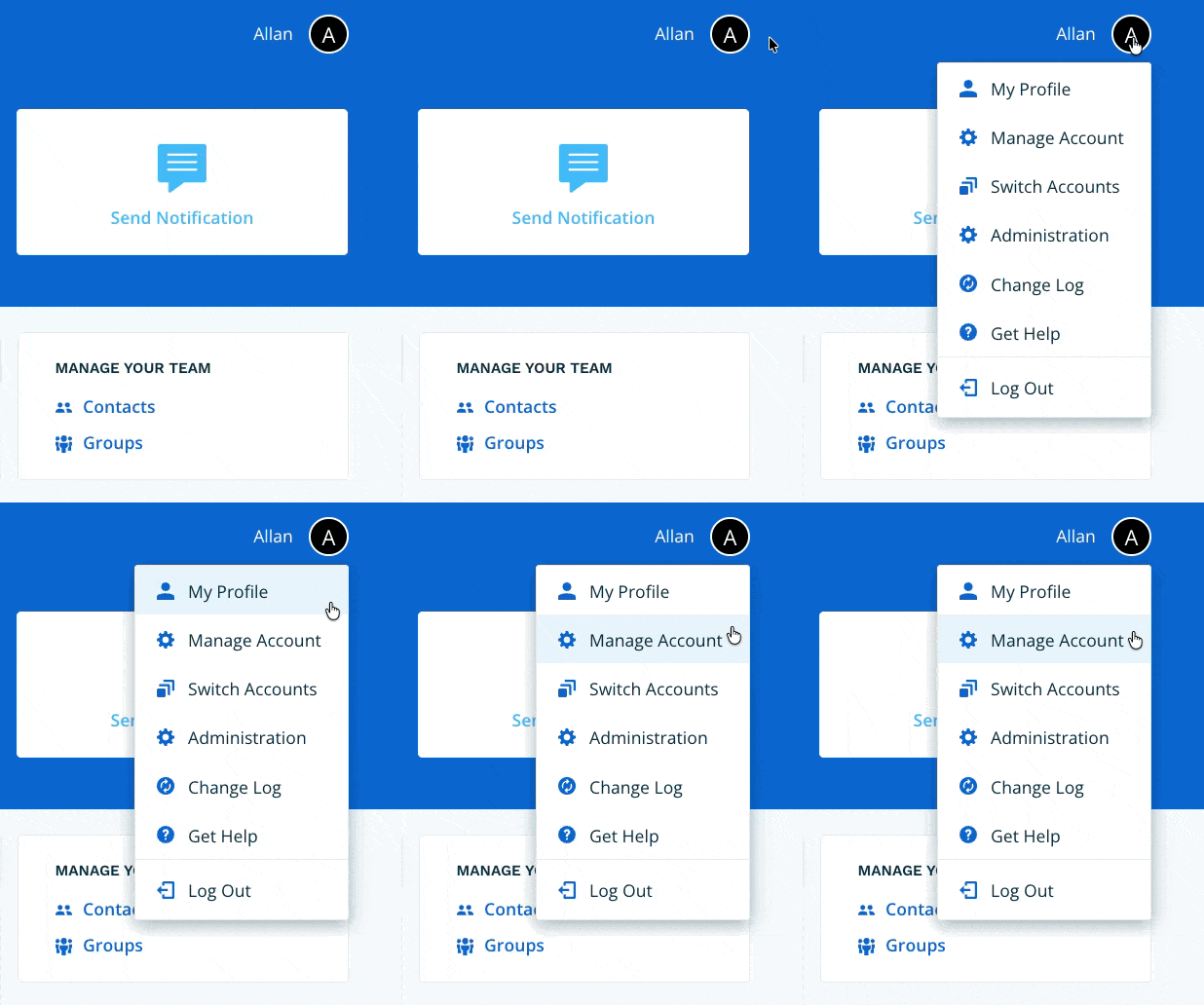
Navigate to Manage Account via the profile menu.
Step 2
Select Contexts from the left-hand navigation.

Step 3
Select Add a Context. You can create as many contexts as your organization needs.

Step 4
Enter a title and description for your context, then select Save.

Once saved, Craig will draw on your context entries when responding to prompts. To edit or delete a context, select the pencil icon on the right side of the entry.
