Troubleshooting Agents
If an Agent isn't behaving as expected — not firing when it should, firing when it shouldn't, or producing unexpected results — this guide will help you identify the cause and fix it.
The History tab on your Agent is your primary diagnostic tool. Start there before making any changes to your Agent's configuration.
For guidance on writing effective conditions from the outset, see Writing good conditions for Craig Agents.
Using the History tab
Every time an Agent runs, a record is added to the History tab. Records are searchable by date range and show:
- When — the date and time of the execution.
- Status — the state Craig determined after evaluating the conditions: Clear, Warning, or Alert.
- Reasoning — a plain-language summary of why the condition was or wasn't met.
Expanding a record reveals the full detail of that execution:
- The conditions Craig evaluated, shown as quoted statements.
- The tool Craig called, the data source it retrieved from, and the response time.
- A Variables section showing the exact values retrieved — including the measured value, the defined thresholds, location, and observation timestamp.
- A Reasoning section explaining Craig's evaluation in plain language.
- A verify link next to each tool call, which opens the source data directly so you can confirm what Craig retrieved against the live data.
- A Report an Issue link if you believe the execution produced an incorrect result.
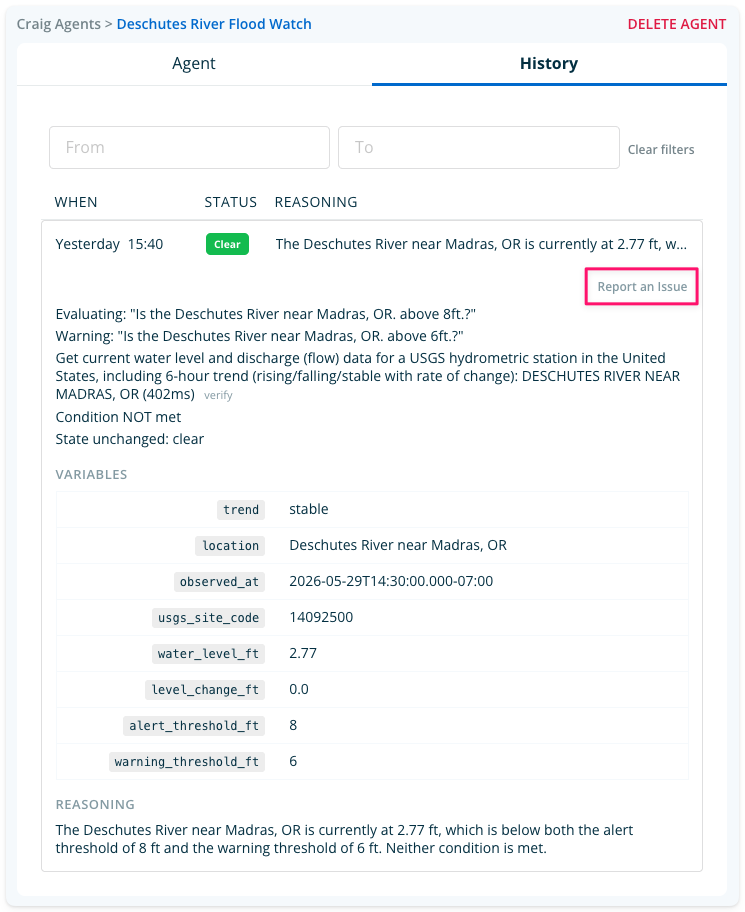
Example History record — condition not met:
Evaluating: "Is the Deschutes River near Madras, OR above 8ft?" Warning: "Is the Deschutes River near Madras, OR above 6ft?" Get current water level and discharge data for a USGS hydrometric station: DESCHUTES RIVER NEAR MADRAS, OR (402ms) [verify] Condition NOT met — State unchanged: clear
Variables: water_level_ft: 2.77 / alert_threshold_ft: 8 / warning_threshold_ft: 6 / trend: stable
Reasoning: The Deschutes River near Madras, OR is currently at 2.77 ft, which is below both the alert threshold of 8 ft and the warning threshold of 6 ft. Neither condition is met.
In this record, Craig retrieved the water level, compared it against both thresholds, and correctly determined that neither condition was met. The Variables section confirms the exact values used in that evaluation.
My Agent isn't firing when I expect it to
Check the History tab first. Open the most recent records and review the Reasoning section. Craig will explain in plain language why the condition wasn't met — this is often enough to identify the issue immediately.
Check the Variables section. Confirm that the value Craig retrieved matches what you'd expect from the data source. If the value looks correct but the condition still wasn't met, your threshold may need adjusting.
Use the verify link to check the source data. Select the verify link next to the tool call in the History record to open the live data source directly. Confirm that the value Craig retrieved matches what the source is currently reporting. If there's a discrepancy, the data source may have updated since the last check — or the tool may have retrieved data from an unexpected location.
Check that your condition is written as a yes/no statement or question. If your condition contains vague or judgement-based language — for example, "let me know if conditions are becoming dangerous" — Craig has no threshold to test against and will treat the condition as not met. Rewrite it as a specific, testable statement: "Wind speed at [[station]] is at or above 40 knots." See Writing Good Conditions — Section 1.
Check that the data field you're testing is reliably available. If the Variables section shows a missing or null value for the field your condition depends on, Craig will treat the condition as not met — this is a deliberate fail-safe. Choose a field the tool reliably returns, or add a second condition on a value that's consistently present. See Writing Good Conditions — Section 2.
Check your check interval. If your Agent is checking less frequently than the data source updates, it may miss a threshold being crossed and cleared between checks. Tighten the check interval to better match the rate of change of the data you're monitoring. See Configuring Agents.
My Agent is firing when it shouldn't be
Check the Reasoning section in the History tab. Craig will explain what it found and why it determined the condition was met. This often reveals whether the condition is too broadly written or the threshold is set too low.
Check your threshold. If your Alert or Warning threshold is being met more often than intended, it may simply need to be raised. Review recent History records to see what values Craig has been retrieving and adjust accordingly.
Check for overlapping Warning and Alert conditions. If your Warning and Alert conditions are very similar — or if the Alert threshold is close to the Warning threshold — Craig may move through states faster than expected. Review both conditions and ensure there is a meaningful gap between them. See Writing Good Conditions — Section 3.
Check your Ongoing notification interval. If you're receiving more Ongoing notifications than expected, the check interval while in Alert state may be set too frequently for the situation. Increase the interval to reduce notification frequency without disabling the Agent. See Configuring Agents.
My Agent fired correctly but the notification content isn't right
Check your message for placeholder accuracy. If the notification message contains unexpected values or missing fields, confirm that your [[placeholders]] reference fields that the tool actually returns. Cross-reference the Variables section in the History tab to see the exact field names available for that tool.
Check for real data values in your message template. If your message template contains realistic-looking numbers rather than [[placeholders]] , Craig may reproduce those values instead of the live data. Replace all real values with placeholders.
Check for conflicting message instructions. If your notification message contains two format rules that contradict each other, Craig will pick one and apply it everywhere. Consolidate conflicting instructions into a single clear rule.
My Agent is producing inconsistent results between runs
Check the Variables section across multiple History records. Compare the values Craig retrieved across several recent records. If the retrieved values are consistent but the state is changing unexpectedly, your condition may be written ambiguously enough for Craig to evaluate it differently each time. Rewrite it as a precise, testable statement with a specific threshold.
Check whether the data source updates frequently enough. Some data sources update infrequently. If Craig is checking more often than the source updates, consecutive records may show identical values but different reasoning — particularly if the condition sits close to the threshold. Consider whether a less frequent check interval is more appropriate for the data type.
Check whether the Agent has been recently edited. Editing an Agent triggers a new discovery phase on the next run, which may result in a different model being assigned. If behaviour changed after a recent edit, check the model icon on your Agent. See Fast and Thinking: How Craig Chooses the Right Model.
My Agent has been assigned the Thinking model but I expected Fast
Craig assigns the Thinking model when it determines that the task requires conditional logic or reasoning during the discovery phase. For Agents, this is most likely when:
- The Alert or Warning condition contains if/then language or comparative logic.
- The condition asks Craig to evaluate a trend or a calculated value rather than a directly retrieved field.
- The message template contains conditional formatting rules.
Simplifying the condition — removing conditional language where it isn't genuinely needed, or ensuring the condition tests a single directly retrieved value — may result in Fast being assigned on the next discovery run. See Fast and Thinking: How Craig Chooses the Right Model.
Still not getting the results you need?
If you've worked through the steps above and your Agent still isn't behaving as expected, select Report an Issue and provide a description of what you expected versus what you received.