What does an Android user see when they receive a Locate request?
This article shows what an Android user sees when they receive a Locate request. It's useful if you want to know what to expect, or what to tell a subject before you send the request. The experience is the same whether your account starts sessions Locate first or Message first. In a Message-first session, the subject sees it when you request their location.
The experience is largely the same as on an iPhone (iOS), with one key difference: Android phones share battery level automatically, with no action needed from the subject. To see the iPhone experience, go to What does an iOS user see when they receive a Locate request?
Step 1 — Receiving the text message
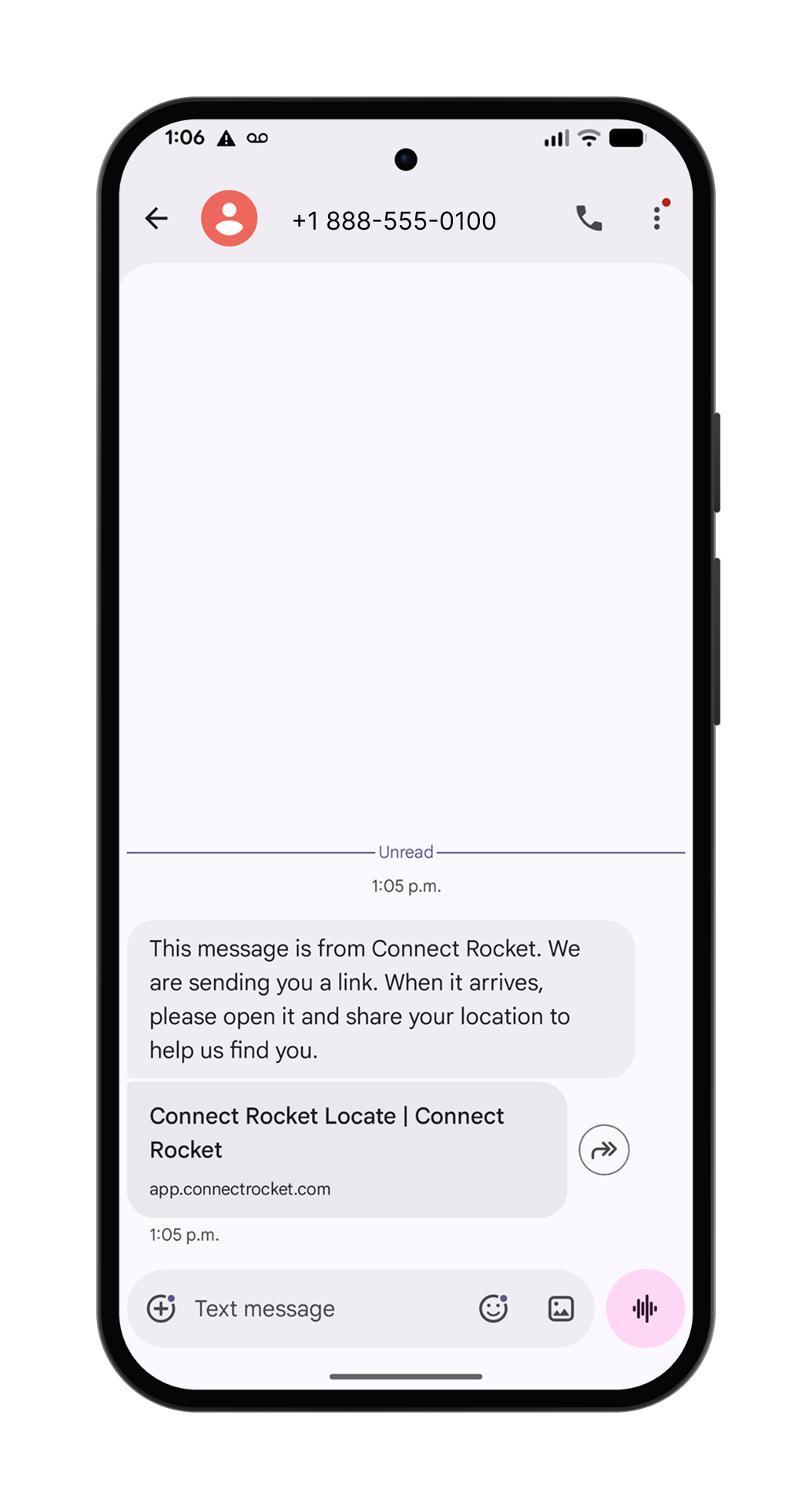
When a Locate request is sent, the subject receives a text message containing your Initiation Message and a link. Depending on their phone and messaging app, the link may appear with a preview image or as a plain web address. Both open the same page. It helps to tell the subject to expect a link.
You can customize the Initiation Message. See Configuring Locate & Message. The Initiation Message is translated only when the subject's language is already known.
Step 2 — Sharing location
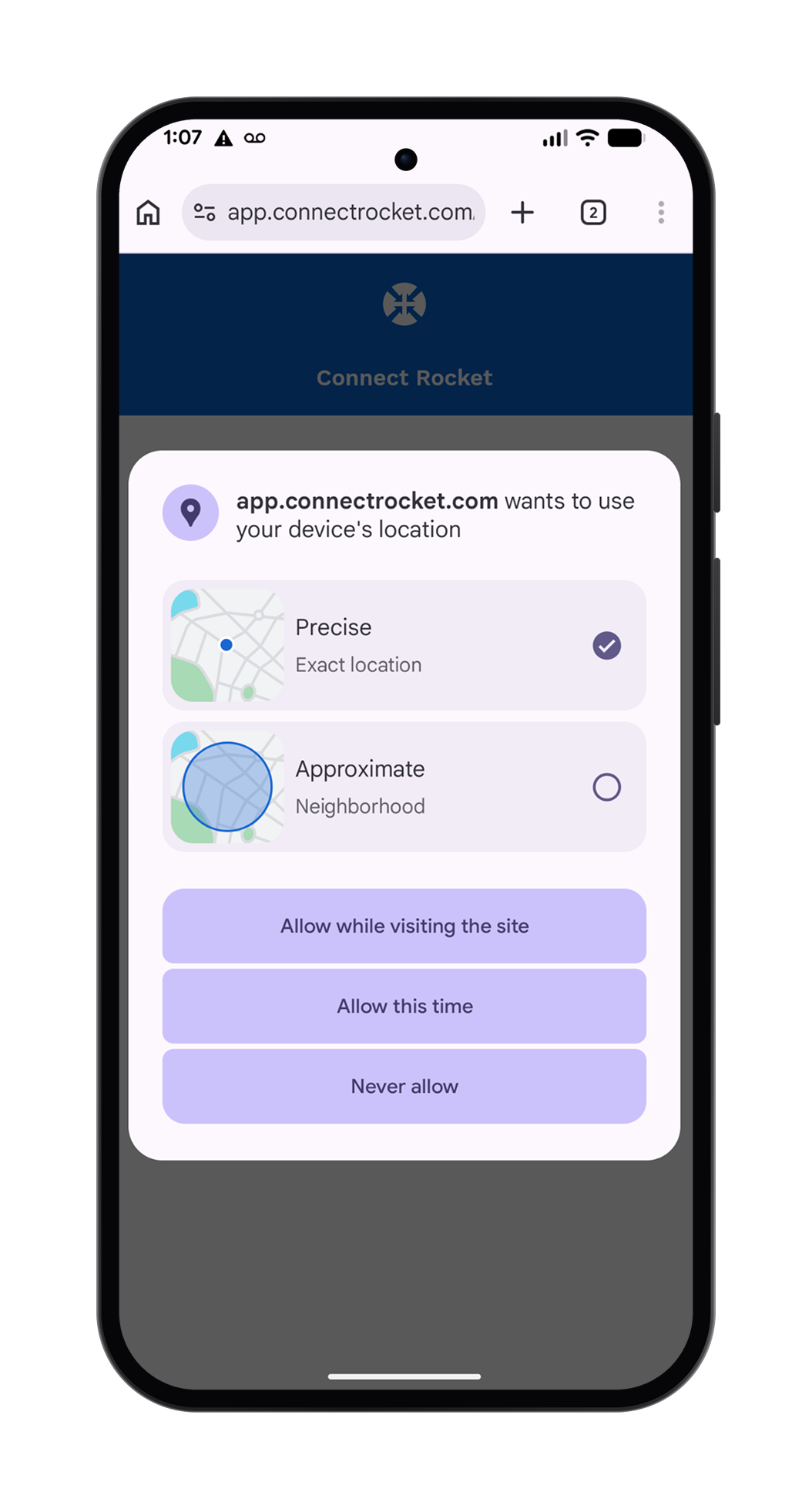
When the subject taps the Locate link, a Connect Rocket web page opens in their browser. Everything from here on happens on this page. Depending on the settings on their phone, the browser may ask them to allow location access.
The page appears in the subject's language, which is normally the language of their phone. This doesn't require translation to be turned on. If translation is on and a language was already set or detected for the conversation, the page uses that language.
Android's permission prompt may offer a choice between Precise and Approximate location. For an accurate result, the subject should select Precise. Approximate gives a much wider, less useful search area.
If location services are turned off on their phone, Connect Rocket automatically shows them how to turn them on.
Step 3 — Refining location and sharing battery level
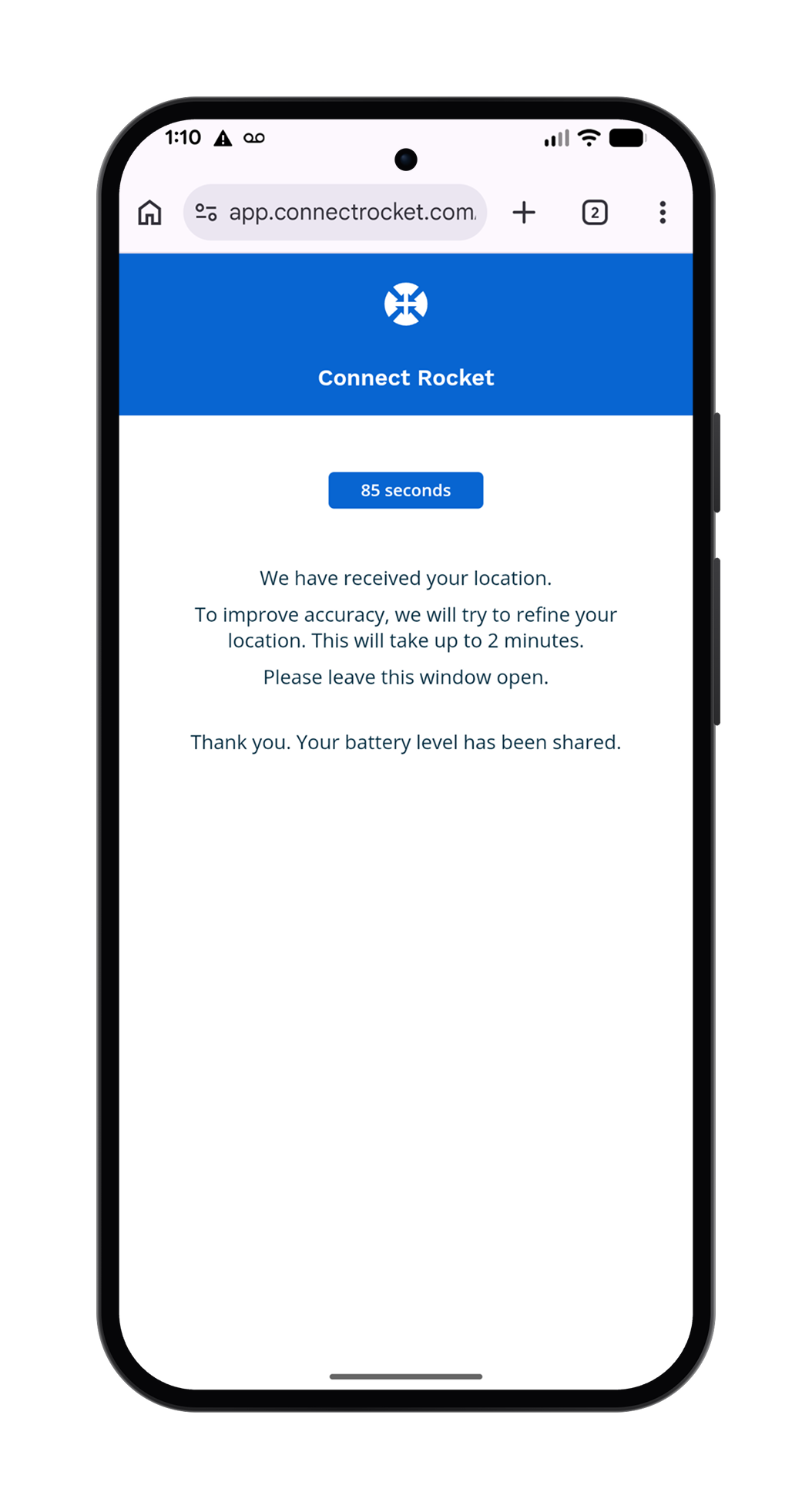
Once the subject allows location access, Connect Rocket gets an initial location. A countdown timer shows while Connect Rocket refines the location over the next 120 seconds (2 minutes).
On Android, battery level is shared automatically in the background. The subject isn't prompted and doesn't need to do anything.
Step 4 — Completion
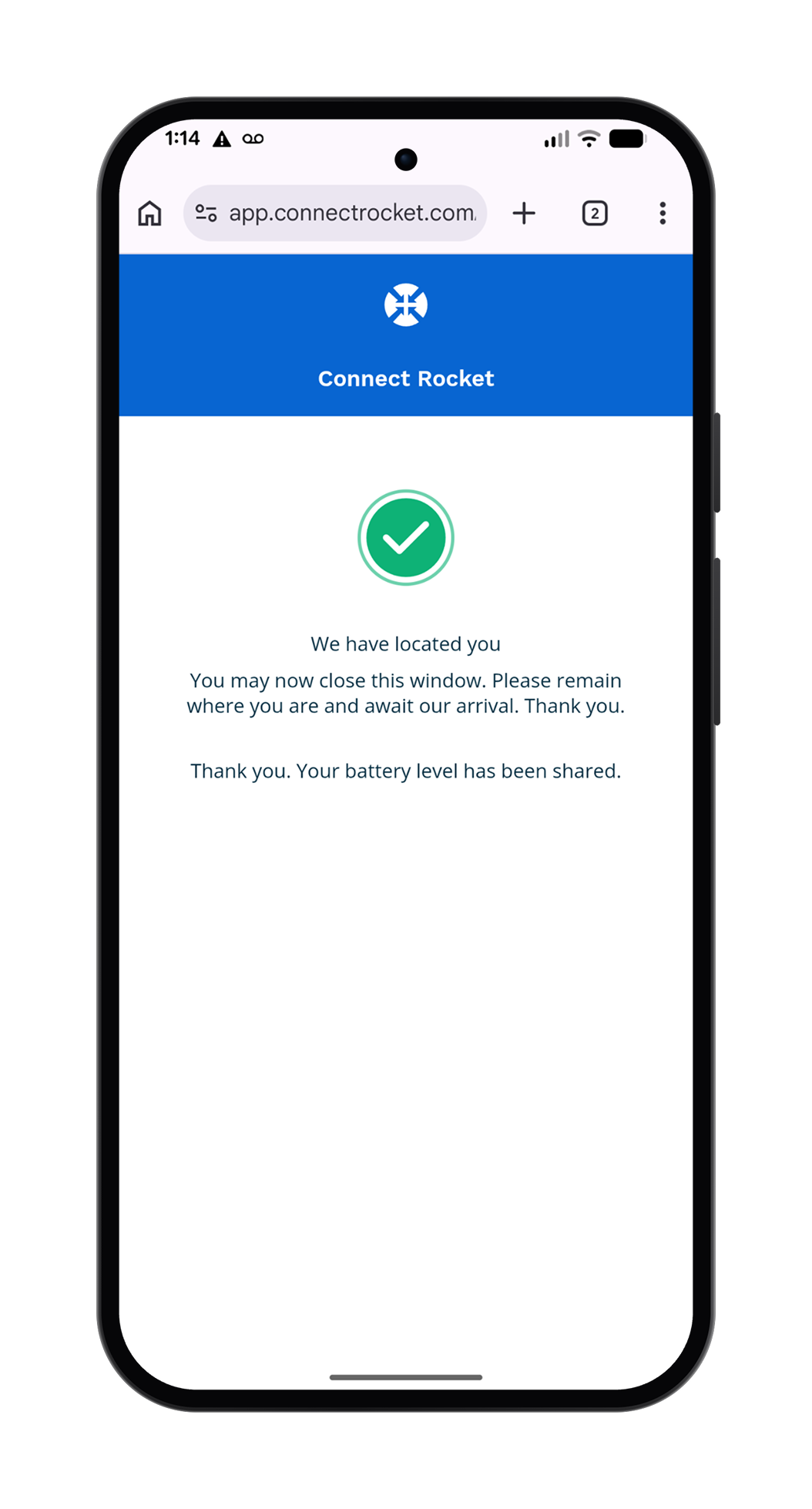
When the location has been obtained, the subject sees your Completion Message on the web page. You can customize it. See Configuring Locate & Message. Use it to give the subject next steps or reassurance. If translation is turned on and the subject's language is known, the message appears in their language.